Sector Management
This guide explains how to manage sectors in Distritour. A sector groups together geographically close clients, facilitating the organization of delivery routes.
Table of Contents
- Accessing the Sectors Module
- Sector List
- Creating a Sector
- Editing a Sector
- Deleting a Sector
- Using Sectors
- Bulk Actions
1. Accessing the Sectors Module
In the left sidebar, click on Sectors to access the sector management module.
2. Sector List
The main page displays the list of all sectors created in the system.
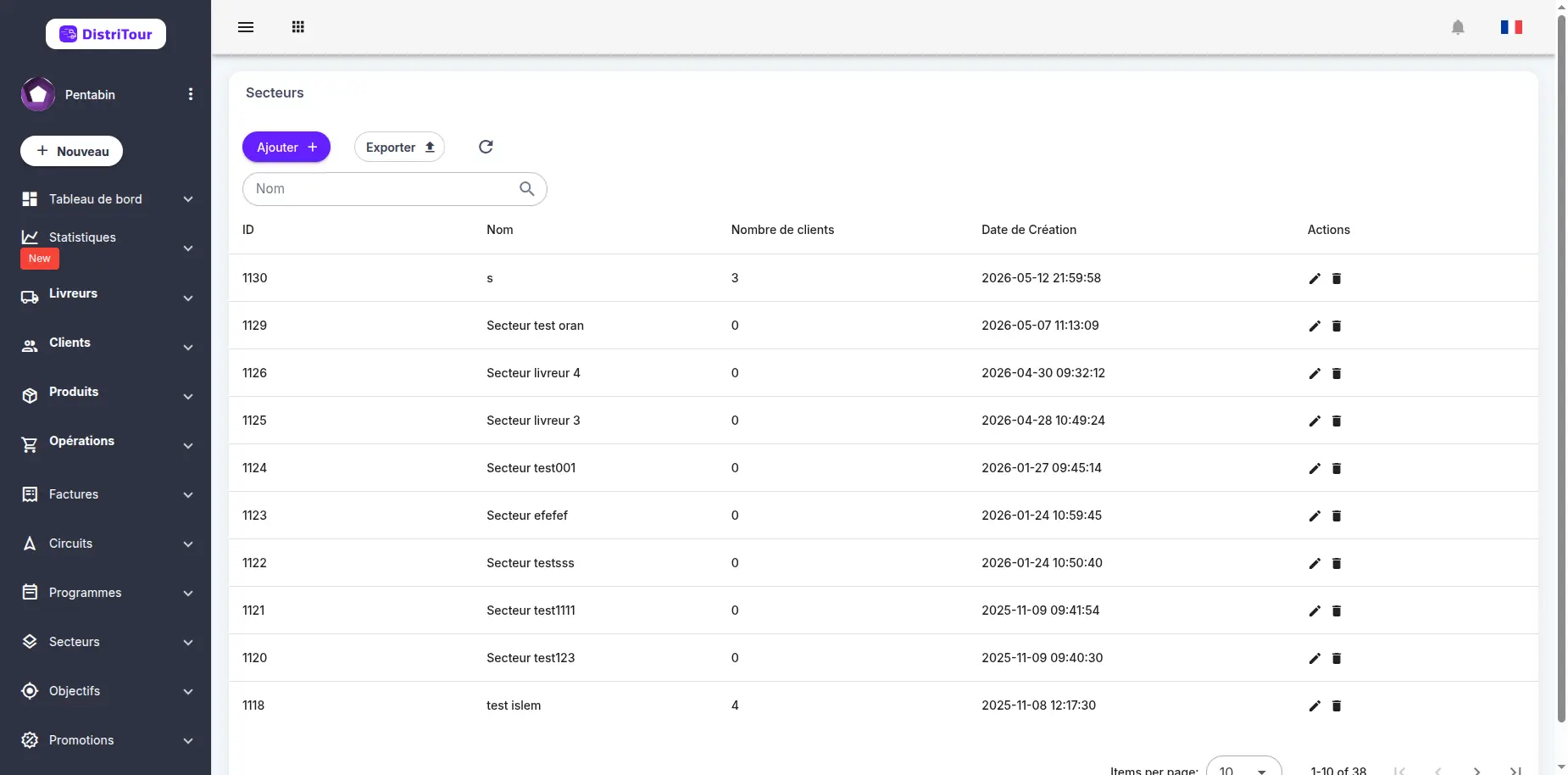
Table Columns
| Column | Description |
|---|---|
| ID | Unique identifier of the sector |
| Name | Sector name (clickable to edit) |
| Number of Clients | Number of clients associated with this sector |
| Creation Date | Date and time when the sector was created |
| Actions | Buttons to edit or delete |
3. Creating a Sector
- Click the New button at the top of the table.
- Fill in the creation form:
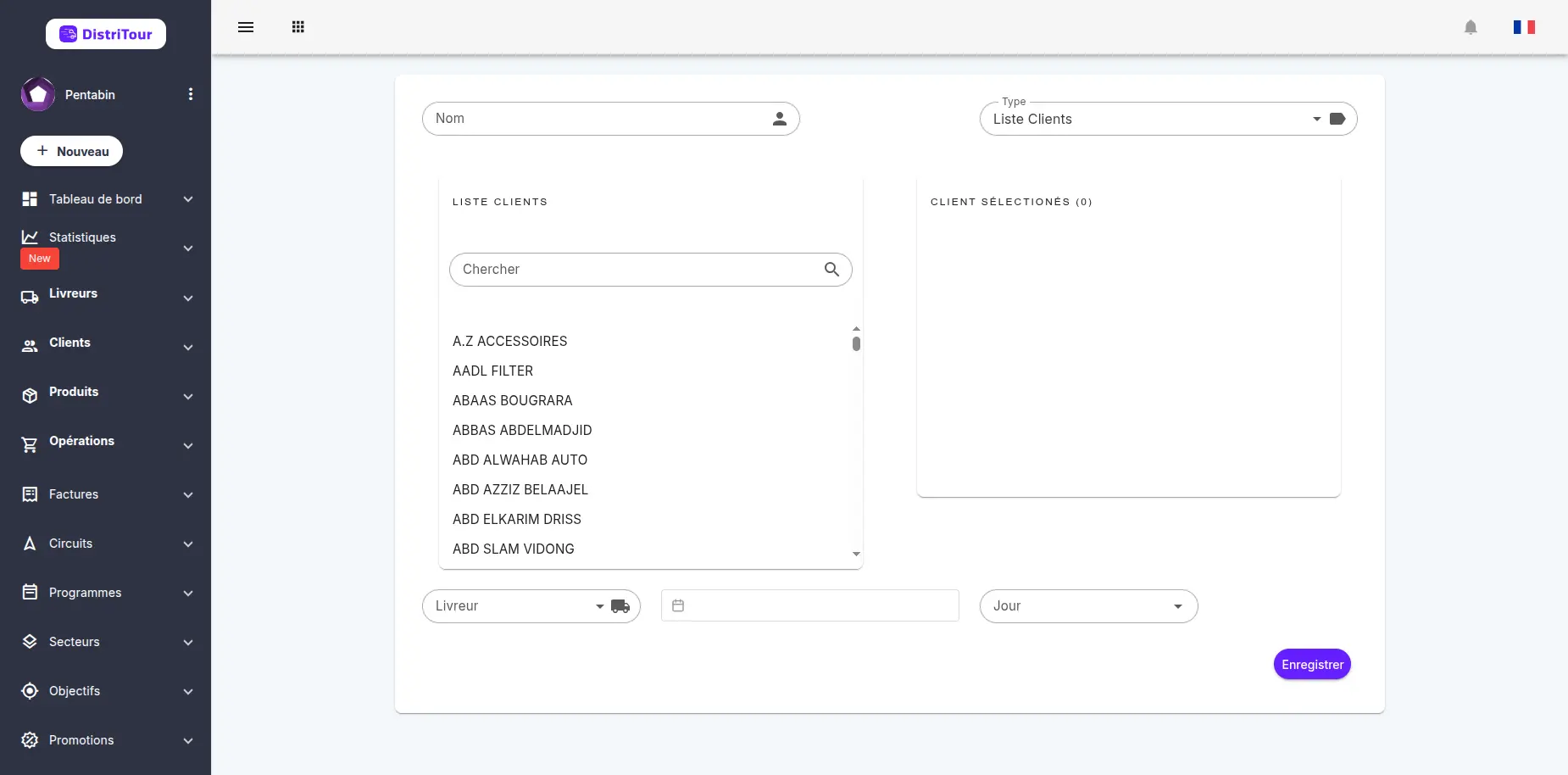
Form Fields
Sector Information
| Field | Required | Description |
|---|---|---|
| Name | Yes | Unique name for the sector |
| Type | Yes | Sector type (default: Client List) |
Filters for Client List
These filters help narrow down the list of available clients on the left:
| Filter | Description |
|---|---|
| Carrier | Show only clients created by this carrier |
| Day | Show only clients created on this day of the week |
| Date | Show only clients created on this specific date |
| Search | Filter by name to quickly find a client |
Client Selection
| Section | Description |
|---|---|
| Available Clients | List of clients not assigned to this sector. Click a client to add them. |
| Selected Clients | List of clients already assigned to this sector. Click to remove. |
- Click Save to create the sector.
Tip: Use the filters (carrier, day, date) to display only relevant clients, then use the search bar to quickly find a client by name.
4. Editing a Sector
- In the list, click on the name of the sector to edit.
- The form opens with current data.
- Modify the desired information:
- Change the sector name
- Use the filters (carrier, day, date) to find clients
- Add or remove clients from the sector
- Click Save to apply the changes.
5. Deleting a Sector
⚠️ Warning: Deleting a sector is permanent. The associated clients will not be deleted, but they will lose their assignment to this sector.
- In the list, select the sector to delete.
- Click the delete icon in the Actions column.
- Confirm the deletion in the dialog box.
6. Using Sectors
Sectors are used in several Distritour modules:
| Module | Usage |
|---|---|
| Circuits | "By Sector" type circuits use sectors to define which clients to visit |
| Programs | Programs assign sectors to carriers for each day of the week |
| Client Map | Geographic visualization of clients grouped by sector |
7. Bulk Actions
The sectors list supports bulk actions — select multiple sectors using the checkboxes, then click the Actions button that appears to perform an operation on all selected sectors at once.
Available Bulk Actions
| Action | Description |
|---|---|
| Delete Selected | Permanently delete all selected sectors |
How to Use Bulk Actions
- Select sectors: Check the box next to each sector you want to include. You can also use the checkbox in the table header to select/deselect all.
- Open the Actions menu: An Actions button appears above the table once at least one sector is selected.
- Choose an action: Click the button and select the desired action from the dropdown menu.
- Confirm: A confirmation dialog appears. Click Confirm to proceed with the deletion.