Product Management
This guide covers everything you need to manage your products: creating records, filling in details, editing, deleting, viewing statistics, and managing stock.
Table of Contents
- Accessing the Products Module
- Creating a Product
- Product Form Fields
- Editing a Product
- Deleting a Product
- Viewing Product Details
- Product Statistics
- Stock Management
- Statistics by Category
- Stock Value List
- Importing & Exporting Products
- Bulk Actions
1. Accessing the Products Module
In the left sidebar, click on Produits to expand the section. You will see several sub-pages:
- Produits — the main list of all your products
- Stock — inventory management
- Statistiques — aggregate performance stats per product
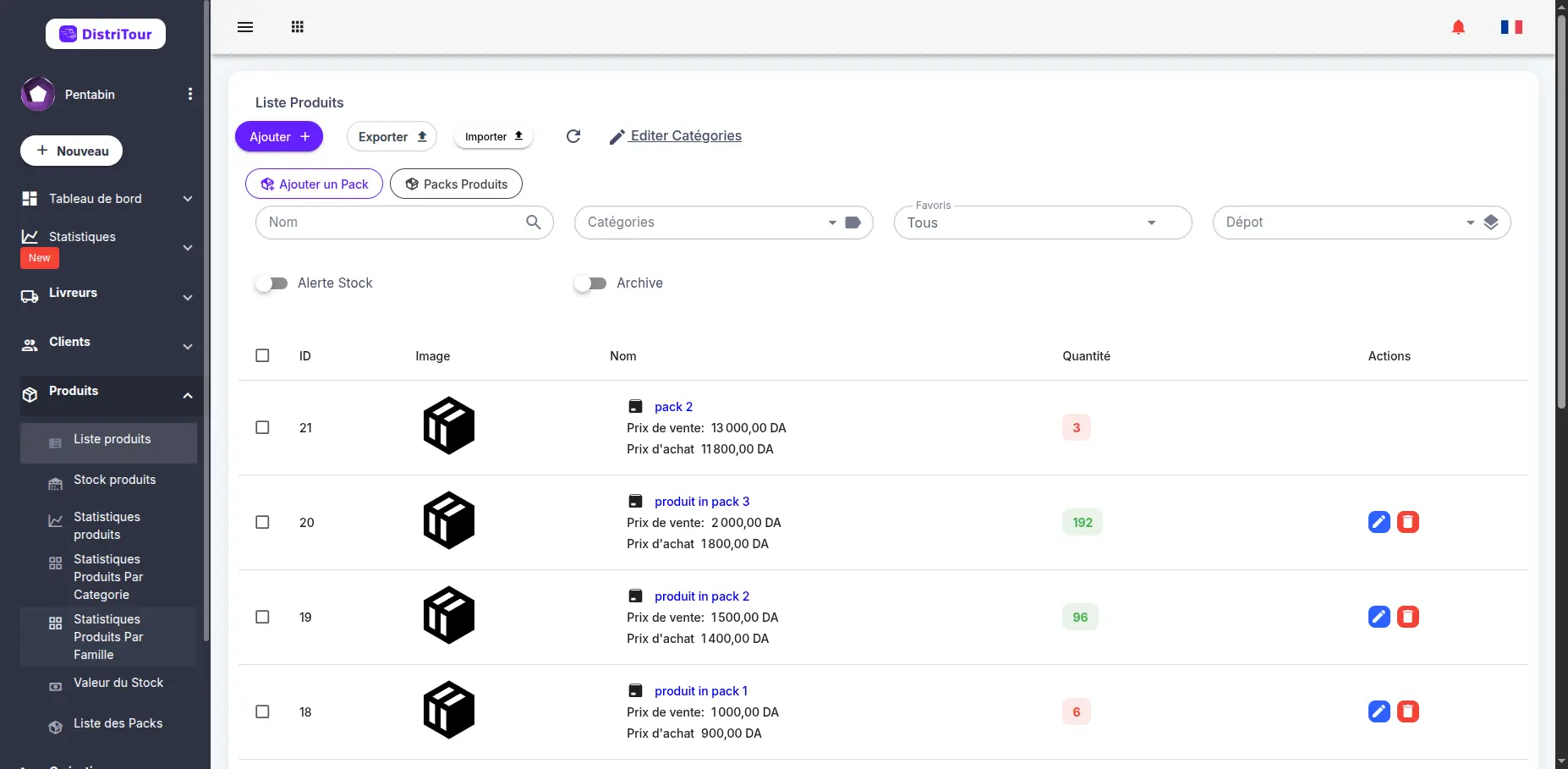
The main products table shows the following columns:
| Column | Description |
|---|---|
| ID | Internal product identifier |
| Image | Product thumbnail image |
| Nom | Product name (clickable to view details) |
| Quantité | Current stock quantity |
| Prix d'achat | Product buy price |
| Prix de vente | Product sell price |
| Actions | Edit ✏️, Delete 🗑️ buttons |
Filters: Use the filter bar at the top to search by Name, Barcode, Category, or other attributes.
2. Creating a Product
- Click the + Ajouter button in the top-left of the Products list.
- Fill in all required fields in the form (see Product Form Fields).
- Click Enregistrer at the bottom to save.
3. Product Form Fields
The create (and edit) form is split into three main sections:
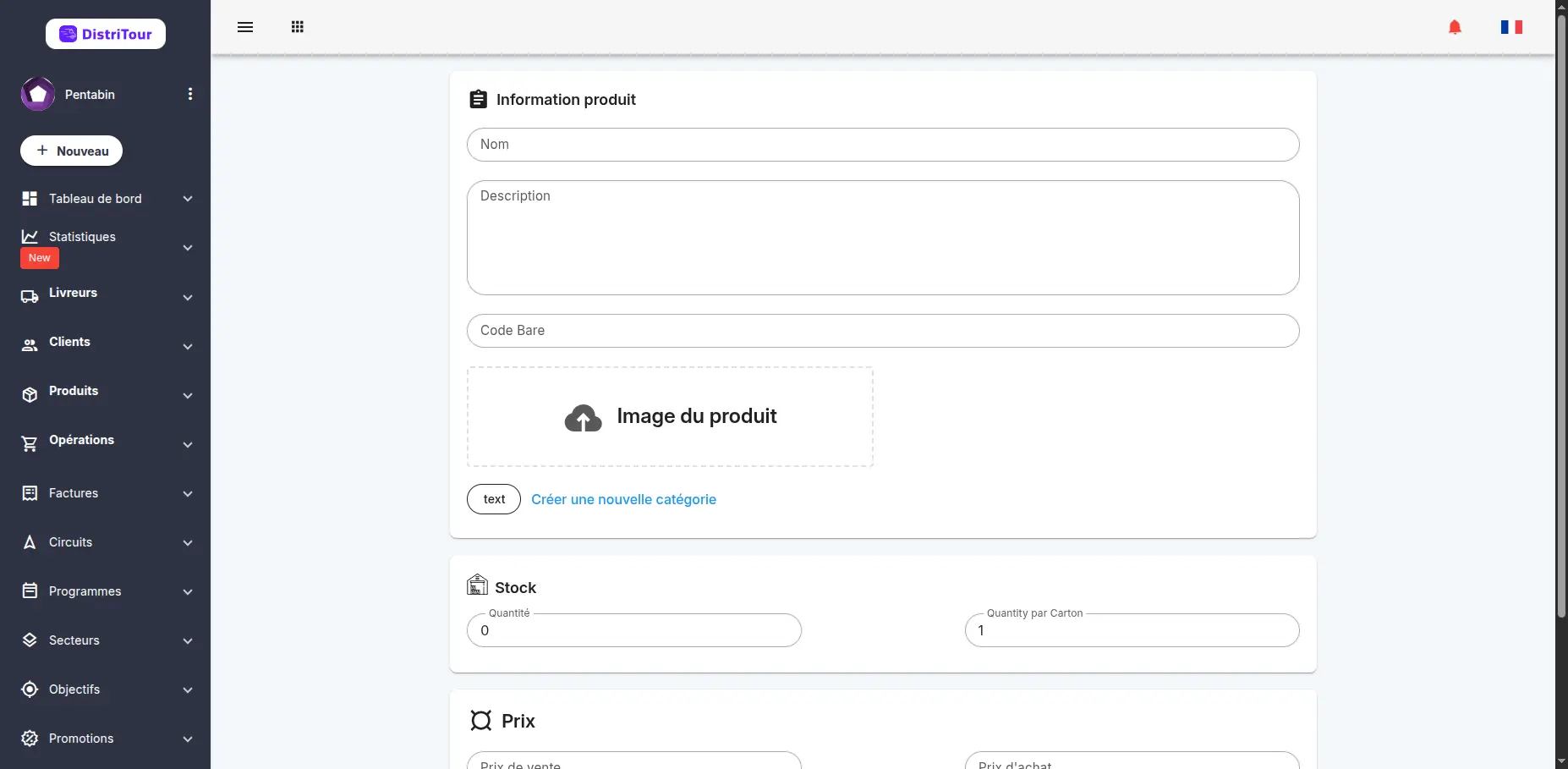
Section 1 — Product Information
| Field | Required | Description |
|---|---|---|
| Nom | Yes | Full name of the product |
| Description | No | Detailed description of the product |
| Code Bare | No | Barcode associated with the product |
| Image | No | Product image upload (recommended for better visibility) |
| Catégorie | No | Product category/family from hierarchical tree structure. Click + to create a new category. |
Section 2 — Stock
| Field | Required | Description |
|---|---|---|
| Quantité | Yes | Current stock quantity (number of units) |
| Quantité par Carton | Yes | Number of units per box/carton |
Section 3 — Price
| Field | Required | Description |
|---|---|---|
| Prix de Vente | Yes | Selling price (must be ≥ buy price) |
| Prix d'Achat | Yes | Purchase/buy price (must be ≤ sell price) |
Product Prices (Optional)
You can set different prices for different categories:
- Client — Special prices for specific client categories
- Livreur — Special prices for delivery carriers
- En Dépôt — Special prices for depot locations
To add a special price:
- Click the + Ajouter Prix button
- Select the price category type
- Choose the specific category
- Enter the price
- Click to delete if needed
Once all fields are filled, click Enregistrer at the bottom-right to save the product.
4. Editing a Product
From the List
- Find the product in the Products table.
- Click the pencil icon ✏️ in the Actions column.
- Modify the desired fields — the form is identical to the creation form, but pre-filled with existing data.
- Click Enregistrer to save your changes.
From the Detail Page
- Open the product's detail page by clicking their name in the list.
- Click the Modifier button next to their name.
- Update the fields and click Enregistrer.
5. Deleting a Product
⚠️ Caution: Deleting a product removes it from the active list permanently.
- In the Products table, find the product row.
- Click the red trash icon 🗑️ in the Actions column.
- Confirm the deletion in the dialog that appears.
6. Viewing Product Details
Click a product's name (shown as a blue link) anywhere in the list to open their detail page.
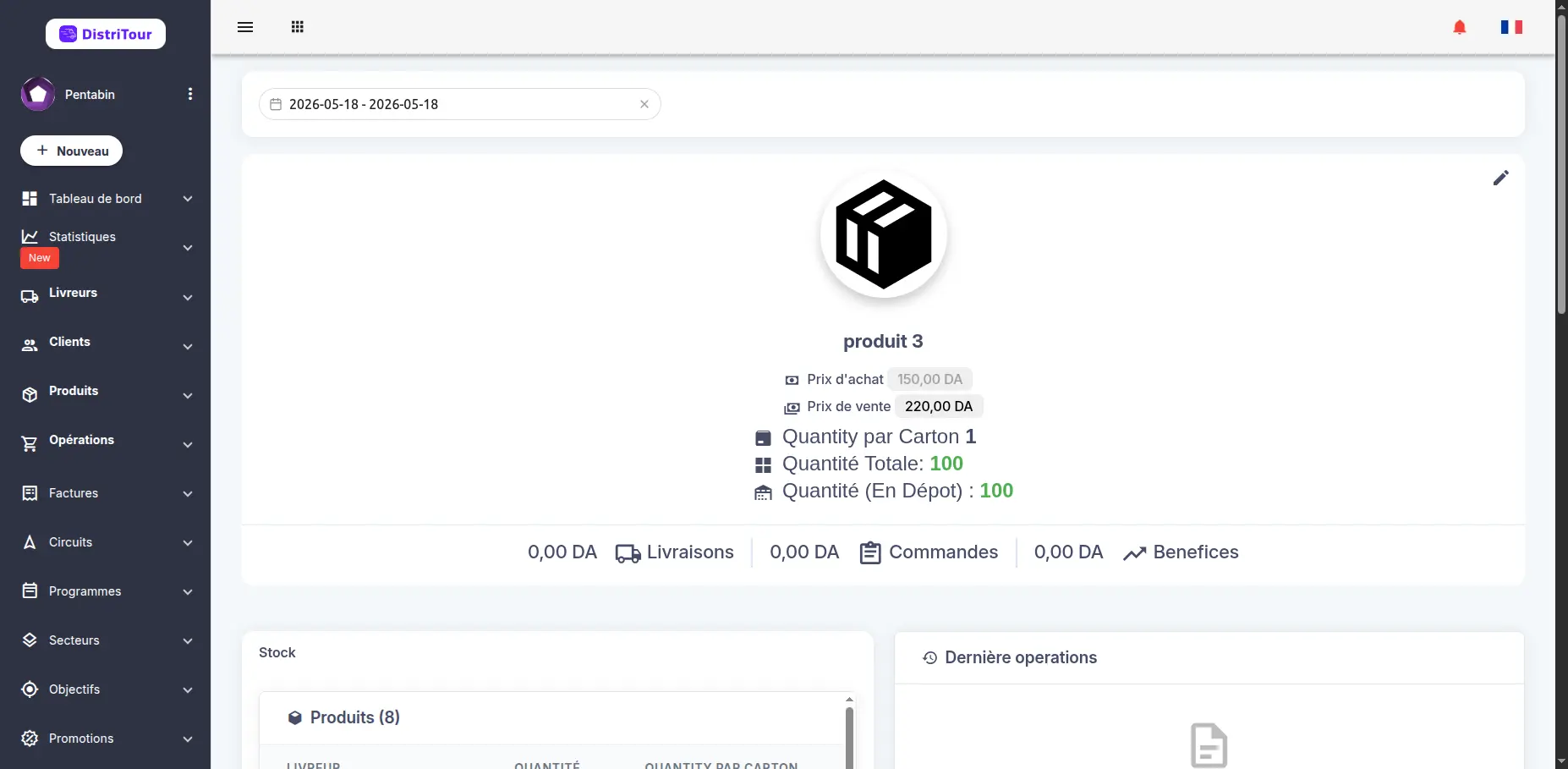
The detail page is divided into the following sections:
Product Information Panel
Displays the product's name, description, barcode, and category with quick action buttons:
- Modifier — opens the edit form
- Statistiques — opens product statistics
Stock Information
Shows current stock levels across different carriers/locations with:
- Carrier name
- Quantity available
- Quantity in boxes
Transaction History
A list of recent transactions (Livraison, Versement, Retour, Commande) related to this product with date and amount. Use the date range filter to view specific periods.
Product History
A detailed history log showing all operations involving this product, including:
- Transaction type
- Date and time
- Quantity changes
- Related client/carrier
Statistics Charts
Visual statistics including:
- Client Stats — Pie chart showing distribution by client
- Carrier Stats — Pie chart showing distribution by carrier
- General Stats — Bar chart showing performance over time
- Quantity Trends — Line chart showing stock quantity changes over time
7. Product Statistics
Navigate to Products → Statistiques produits from the sidebar.
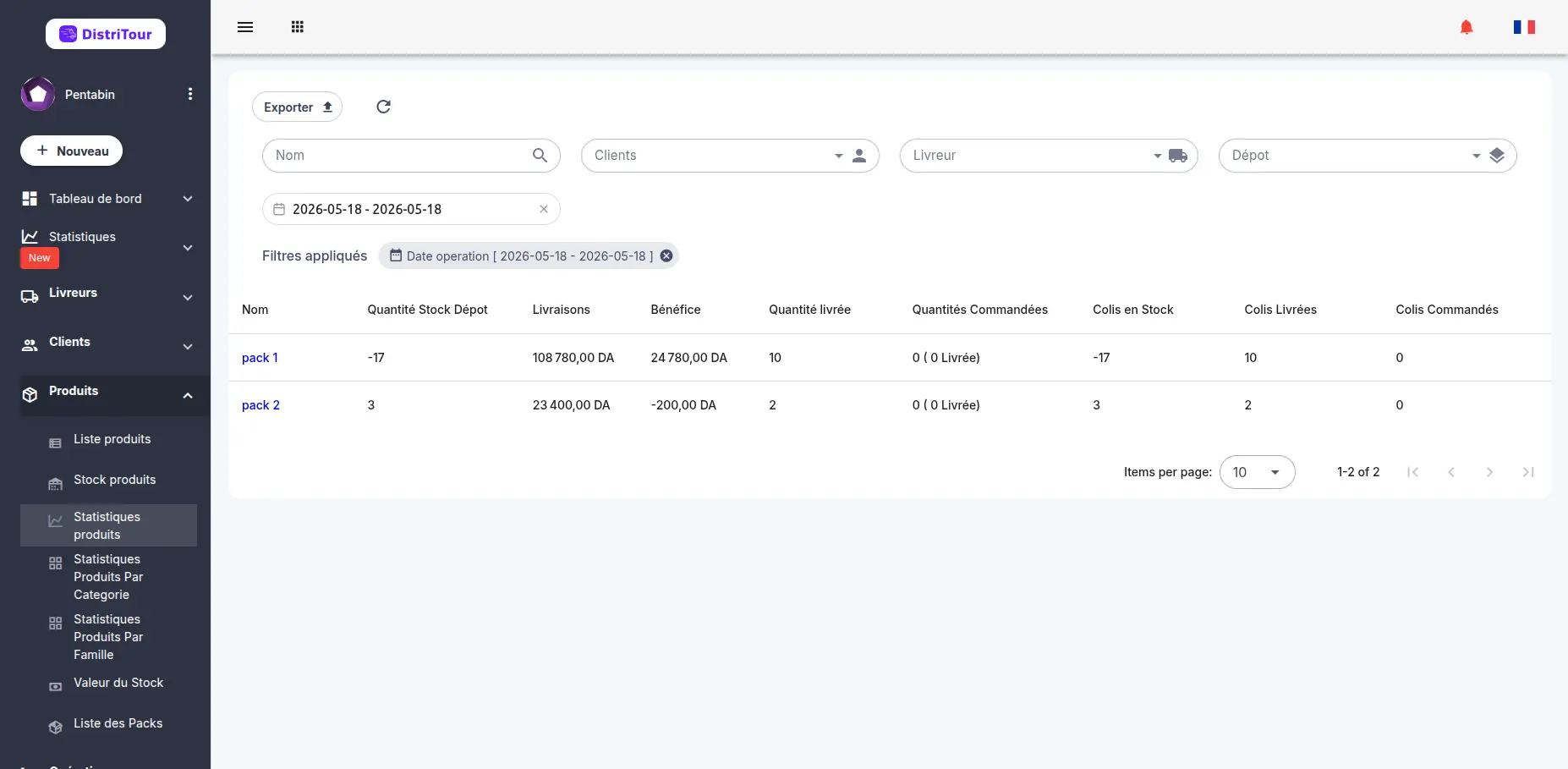
Statistics Table
Each row represents one product and shows aggregated data across the selected date range:
| Column | Description |
|---|---|
| Nom | Product name (clickable to open its detail page) |
| Quantité Stock Dépôt | Current stock quantity at the depot |
| Livraisons | Total delivery amount for this product |
| Bénéfice | Total profit generated by this product |
| Quantité livrée | Total quantity delivered |
| Quantités Commandées | Total quantity ordered (with delivered detail) |
| Colis en Stock | Number of parcels currently in stock |
| Colis Livrées | Number of parcels delivered |
| Colis Commandés | Number of parcels ordered |
Available Filters
- Nom — search by product name
- Clients — filter by client
- Livreur — filter by carrier
- Dépôt — filter by depot
- Date opération — date range picker to scope all stats to a specific period
Tip: Use the date picker to compare performance across different periods (e.g. last month vs. this month).
Export
Click the Exporter button to download the statistics table as a CSV/Excel file for reporting.
8. Stock Management
Navigate to Products → Stock produits from the sidebar to access the stock list.
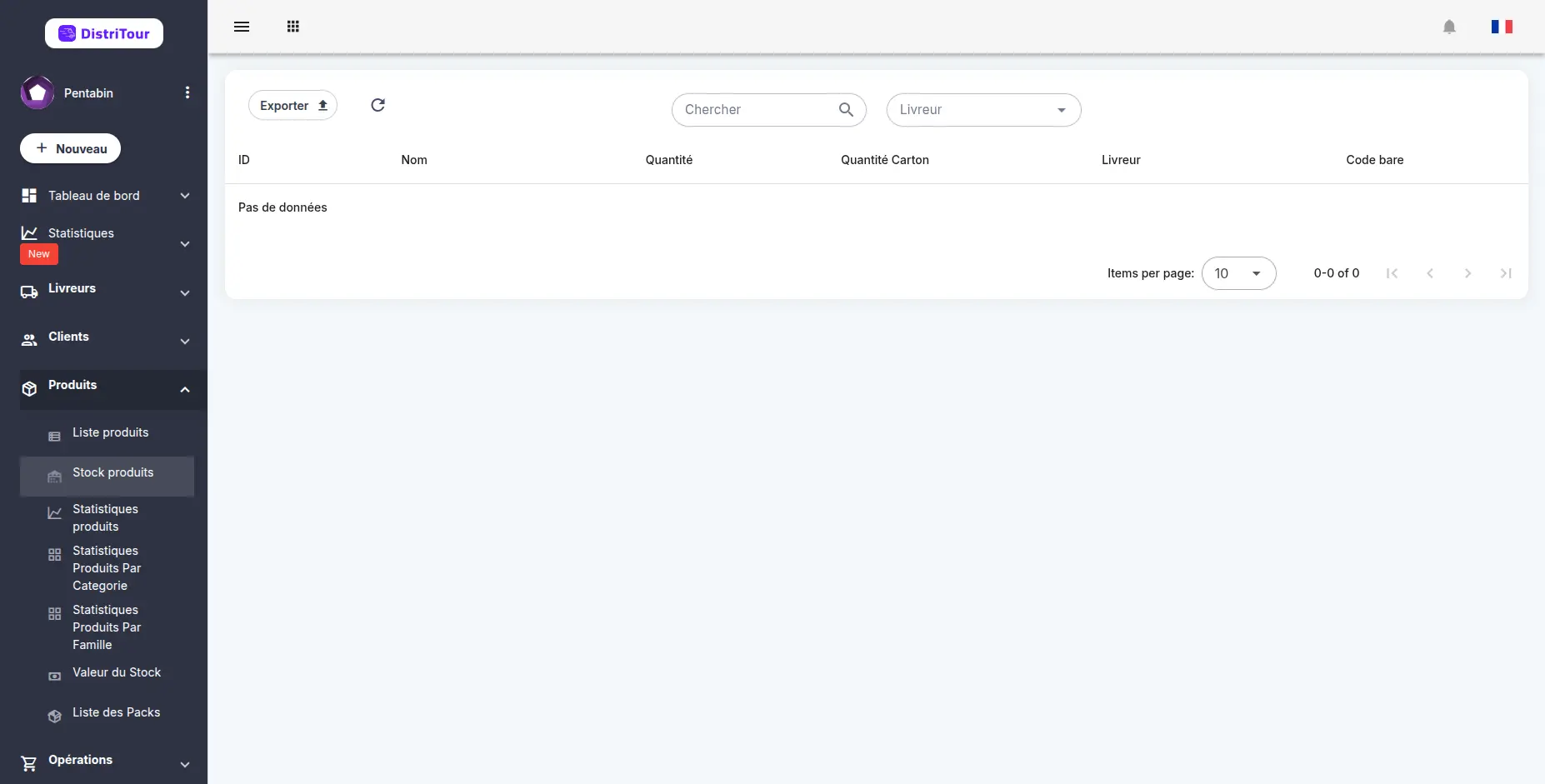
Stock Overview
The stock table displays the following information for each entry:
| Column | Description |
|---|---|
| ID | Stock entry identifier |
| Nom | Product name |
| Quantité | Available stock quantity |
| Quantité Carton | Number of cartons available |
| Livreur | Carrier or depot associated with this stock entry |
| Code bare | Product barcode |
Available Filters
- Chercher — search by product name
- Livreur — filter by carrier or depot
Export
Click the Exporter button to download the stock list as a CSV/Excel file.
9. Statistics by Category
Navigate to Products → Statistiques Produits Par Categorie from the sidebar.
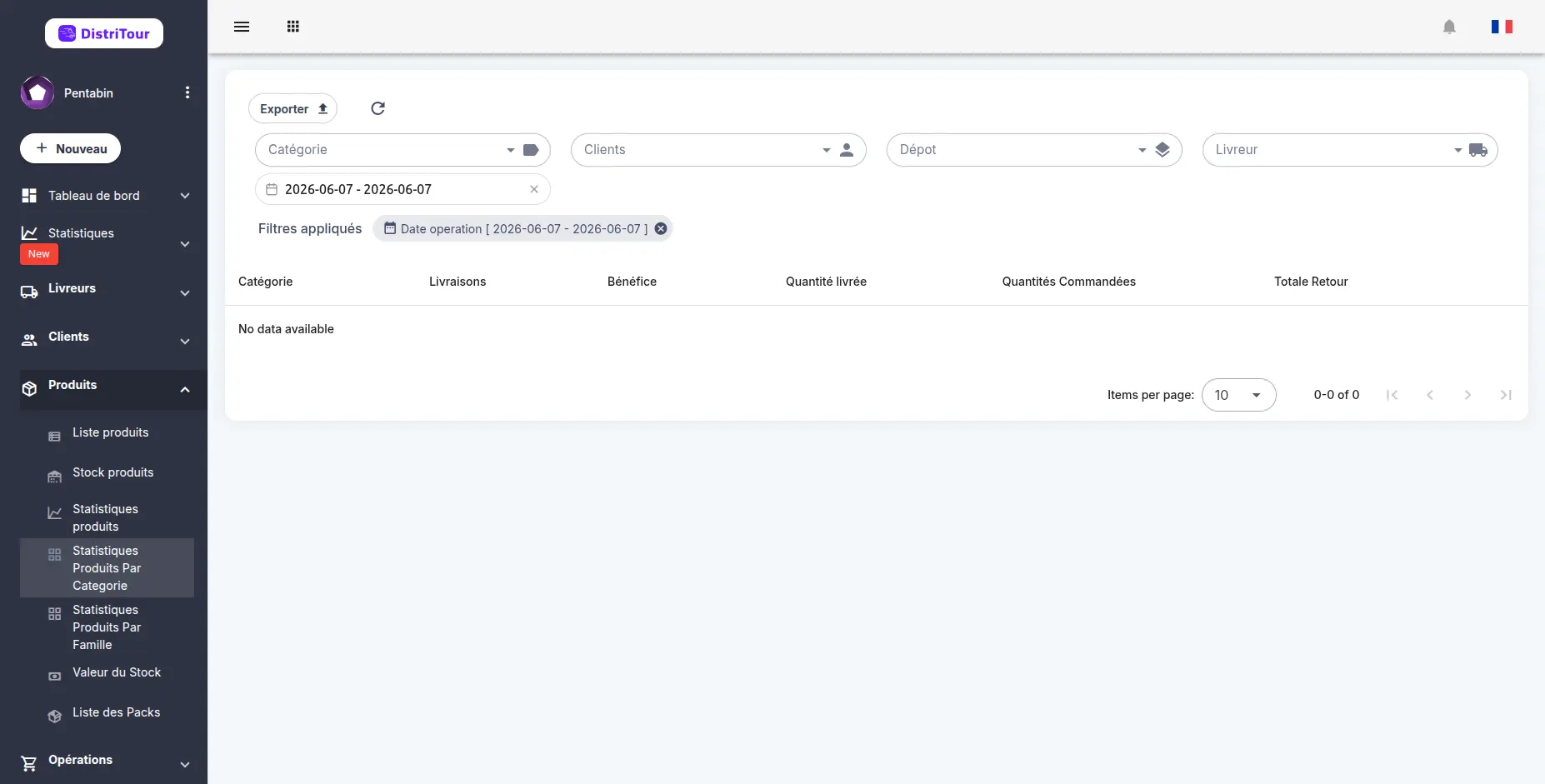
This view lets you analyze the performance of each product category over a selected period.
Category Statistics Table
| Column | Description |
|---|---|
| Catégorie | Product category name |
| Livraisons | Total number of deliveries for this category |
| Bénéfice | Total profit generated by this category |
| Quantité livrée | Total quantity delivered in this category |
| Quantités Commandées | Total quantity ordered in this category |
| Totale Retour | Total quantity returned in this category |
Available Filters
- Catégorie — filter by product category
- Clients — filter by client
- Dépôt — filter by depot
- Livreur — filter by carrier
- Date opération — date range picker
Using Category Statistics
- Profitability Analysis : Identify the most profitable categories
- Returns Tracking : Analyze returns by category to detect quality issues
- Planning : Plan your purchases based on category performance
Tip: Compare statistics across different periods to identify seasonal trends by category.
10. Stock Value
Navigate to Products → Valeur du Stock from the sidebar to access the monetary value summary of your inventory.
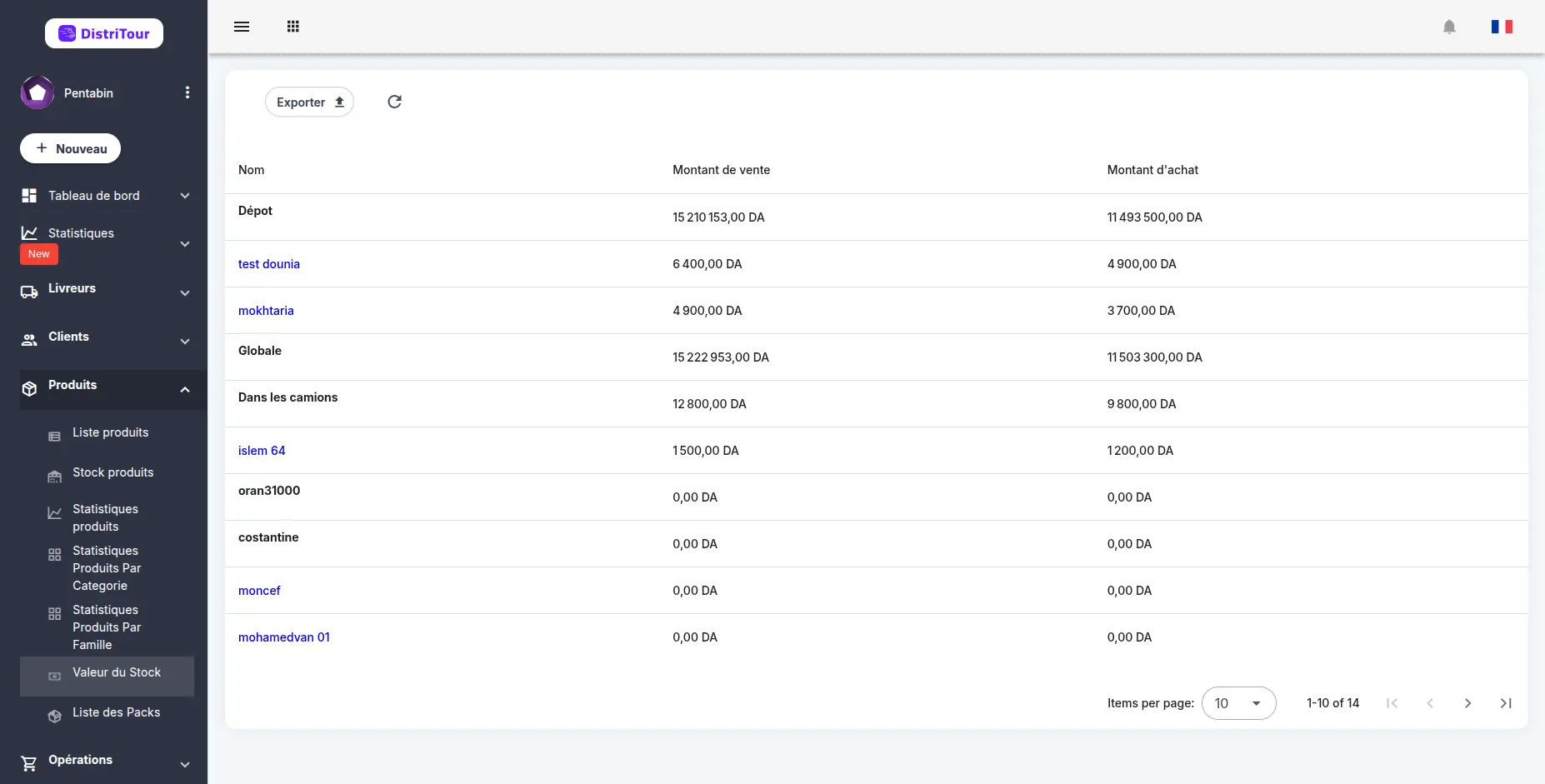
The table is grouped by depot or carrier, showing the stock value held by each.
Displayed Information
| Column | Description |
|---|---|
| Nom | Depot or carrier name |
| Montant de vente | Total stock value at selling price |
| Montant d'achat | Total stock value at purchase price |
Exporting
Click the Exporter button to download the stock value table as a CSV/Excel file for:
- Financial reports
- Stock audits
- Budget planning
Important: Each row represents a depot or carrier. Montant d'achat reflects the actual cost of stock, while Montant de vente represents the potential resale value.
11. Importing & Exporting Products
Export
- From the Products list, click the Exporter button in the toolbar.
- The system generates and downloads a file (CSV/Excel) containing all currently visible product data, including all filtered results.
Import
- Click the Importer button in the Products list toolbar.
- Select and upload your formatted file.
- The system processes the file and adds or updates products accordingly.
Contact your administrator for the correct import file template and column format.
12. Bulk Actions
The products list supports bulk actions — select multiple products using the checkboxes, then click the Actions button that appears to perform an operation on all selected products at once.
Available Bulk Actions
| Action | Description |
|---|---|
| Assign Category | Assign a category to all selected products |
| Delete Selected | Permanently delete all selected products (subject to permissions) |
How to Use Bulk Actions
- Select products: Check the box next to each product you want to include. You can also use the checkbox in the table header to select/deselect all.
- Open the Actions menu: An Actions button appears above the table once at least one product is selected.
- Choose an action: Click the button and select the desired action from the dropdown menu.
- Confirm: Depending on the action, a dialog will appear for you to configure and confirm the operation.
Change History
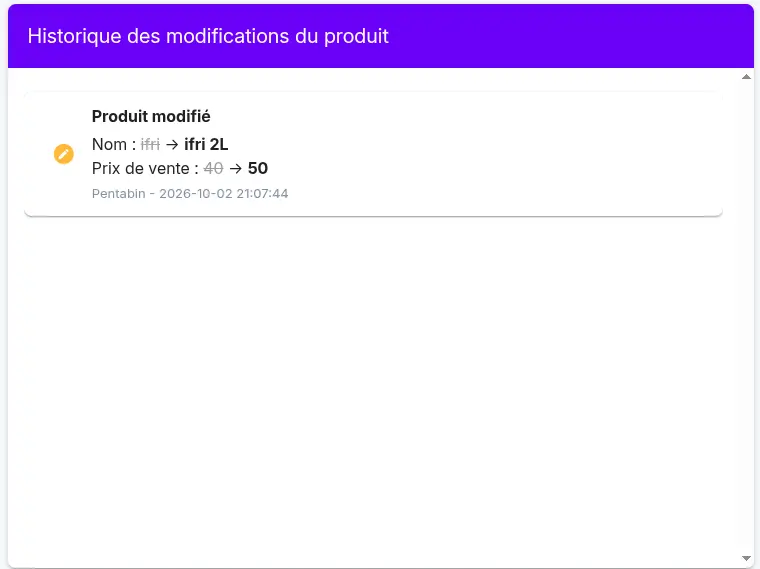
Every change made to this record is captured automatically, for example a change to the name, price or stock information of a product.
The changes can be seen in the change history table, on the product details page. For each change, it shows:
- what happened (added, modified)
- the field concerned, with its old value crossed out and its new value
- the user who made the change and the date and time
This lets you know who changed what, and when.