Mobile App - Order Management
The Orders section allows you to manage all customer orders, view them, and track their status in real time.
Screen Overview
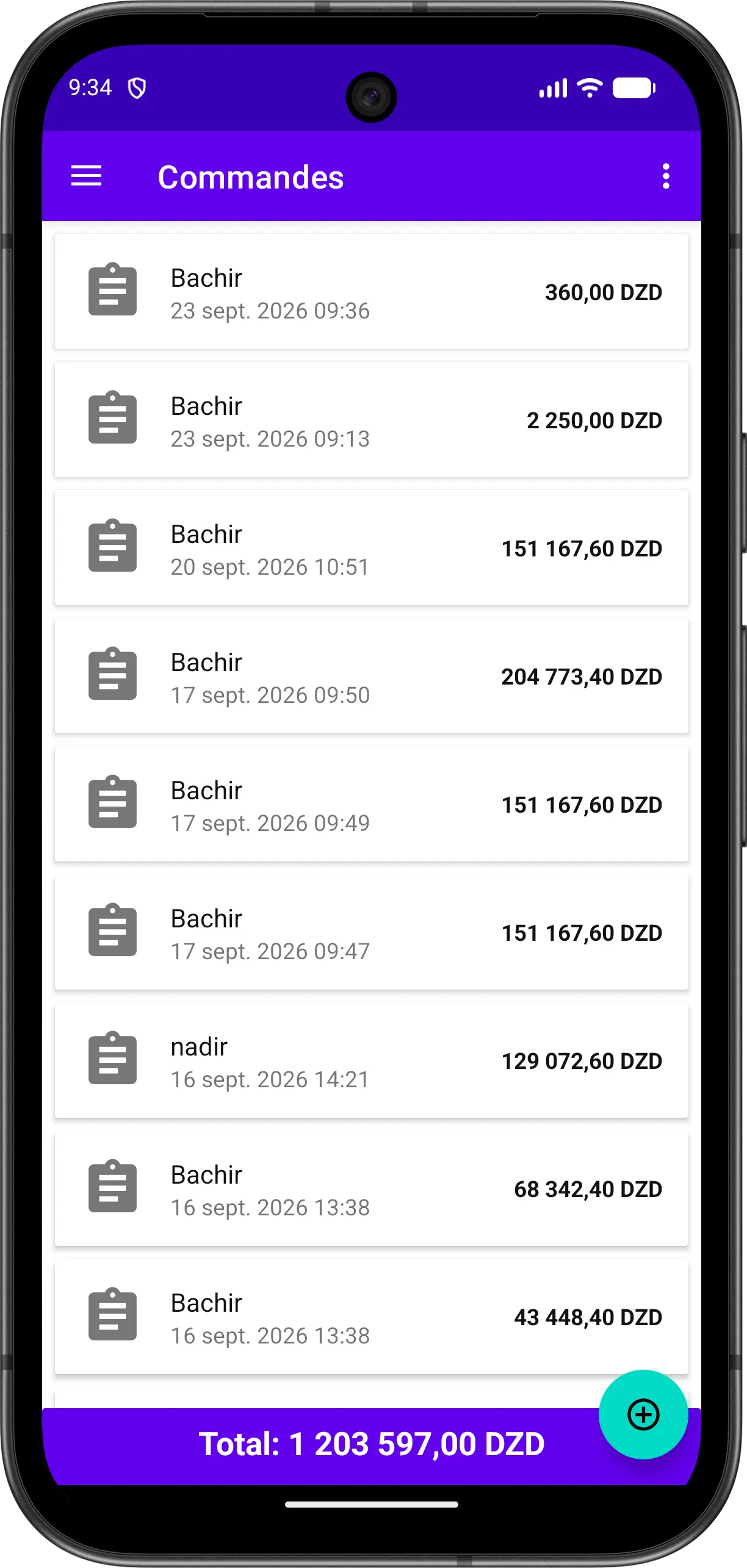
The screen displays a list of all orders with key information:
| Element | Description |
|---|---|
| Order Icon | Icon representing the order. A check mark on the icon means the order has been delivered |
| Customer Name | Customer who placed the order |
| Date and Time | When the order was created |
| Total Amount | Total value of the order in local currency |
| Total Bar | Shows the total of all listed orders |
Main Usage
Browse Orders
- Scroll through the list to see all orders
- Each order displays the customer and amount
- The bottom bar displays the total of all orders
- Delivered orders are marked with a check on their icon
Open an Order
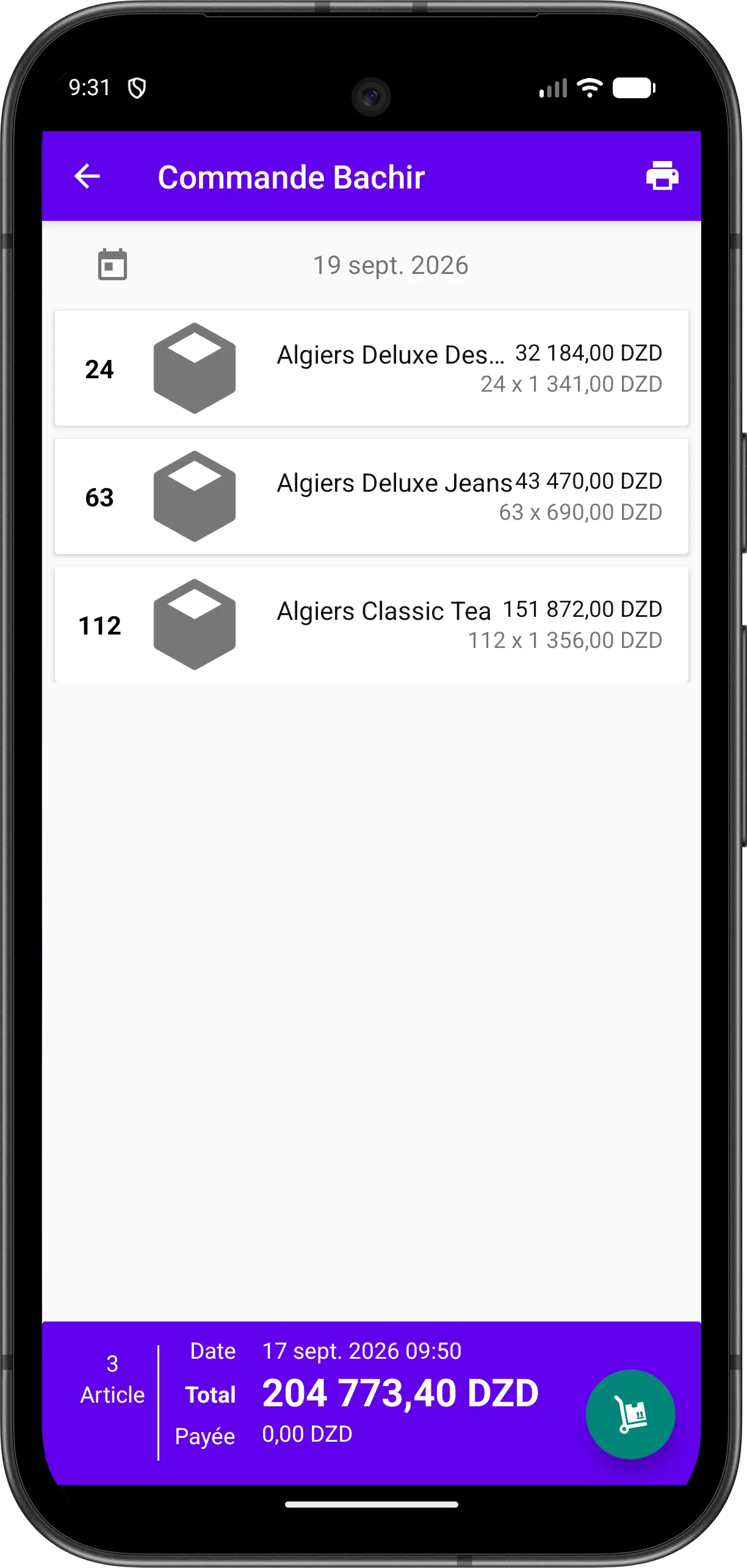
- Tap the order
- You will see the operation details:
- Order items
- Quantities
- Unit prices
- Total amount and amount paid
Create a New Order
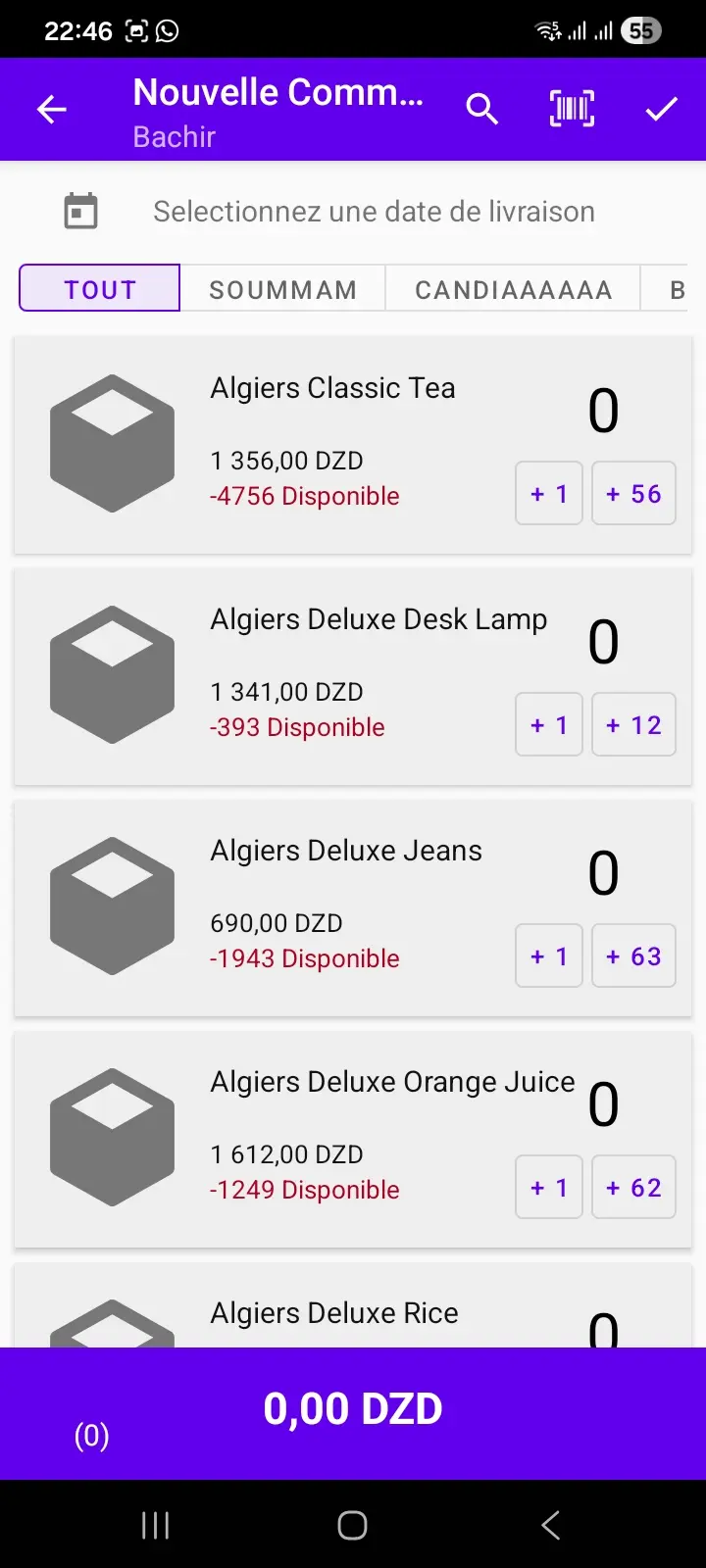
- Open the customer and tap the floating button, then choose Order
- Select a delivery date
- Add products:
- Filter the products with the category tabs, or use search and barcode scan
- Use the quick buttons to add quantities to each product
- The price and available quantity are displayed for each product
- To enter the quantities requested by the customer yourself, tap the product to open its details, type the quantity (units or packages) and confirm
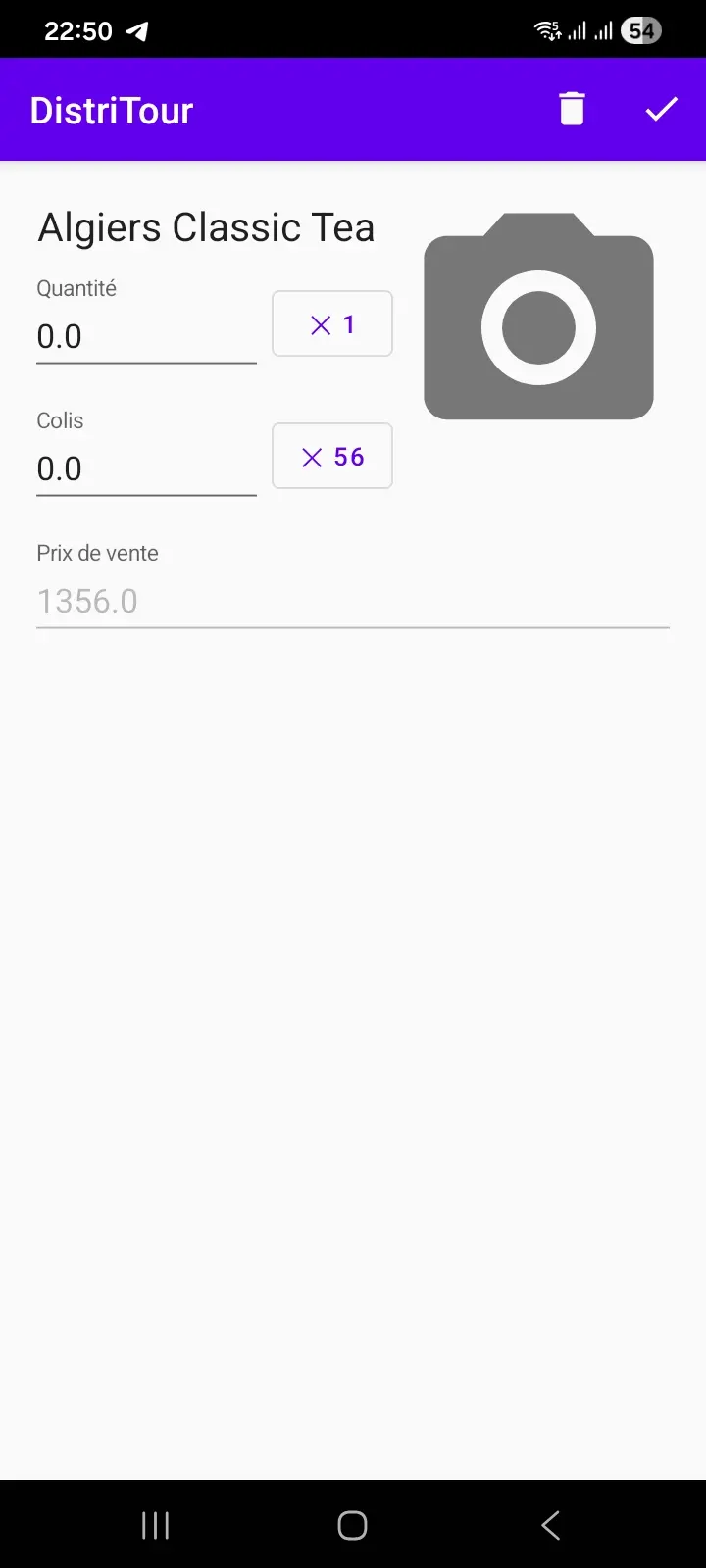
- Check the total at the bottom of the screen
- Tap the confirm icon at the top right to save the order
Deliver an Order
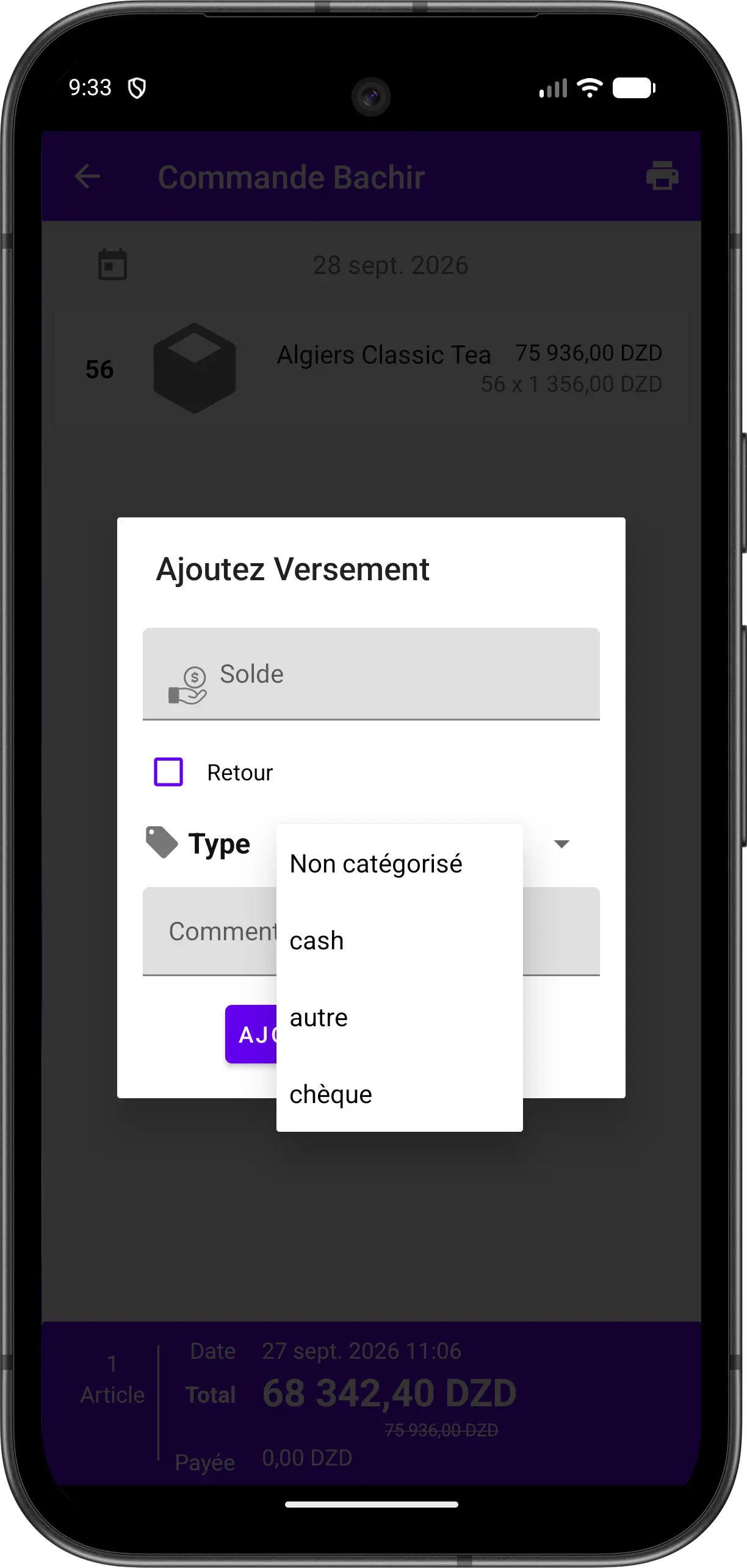
- Open the order
- Tap the floating action button at the bottom right
- Fill in the delivery form (for example, the amount received) and confirm
When the order is delivered, a delivery note is automatically created from the order.
Edit an Order
- Open the order
- Tap Edit
- Adjust quantities or items
- Tap Save Changes
Synchronization
- Orders sync automatically with the server
- Offline orders are cached and synced later
- An order in light gray is not yet synced with the server
- An order in dark gray is synced