Mobile App - Customer Management
The Customers section of the mobile app allows you to manage your customer portfolio in real time, track their balances, plan your visits, and make operations for each customer.
Screen Overview
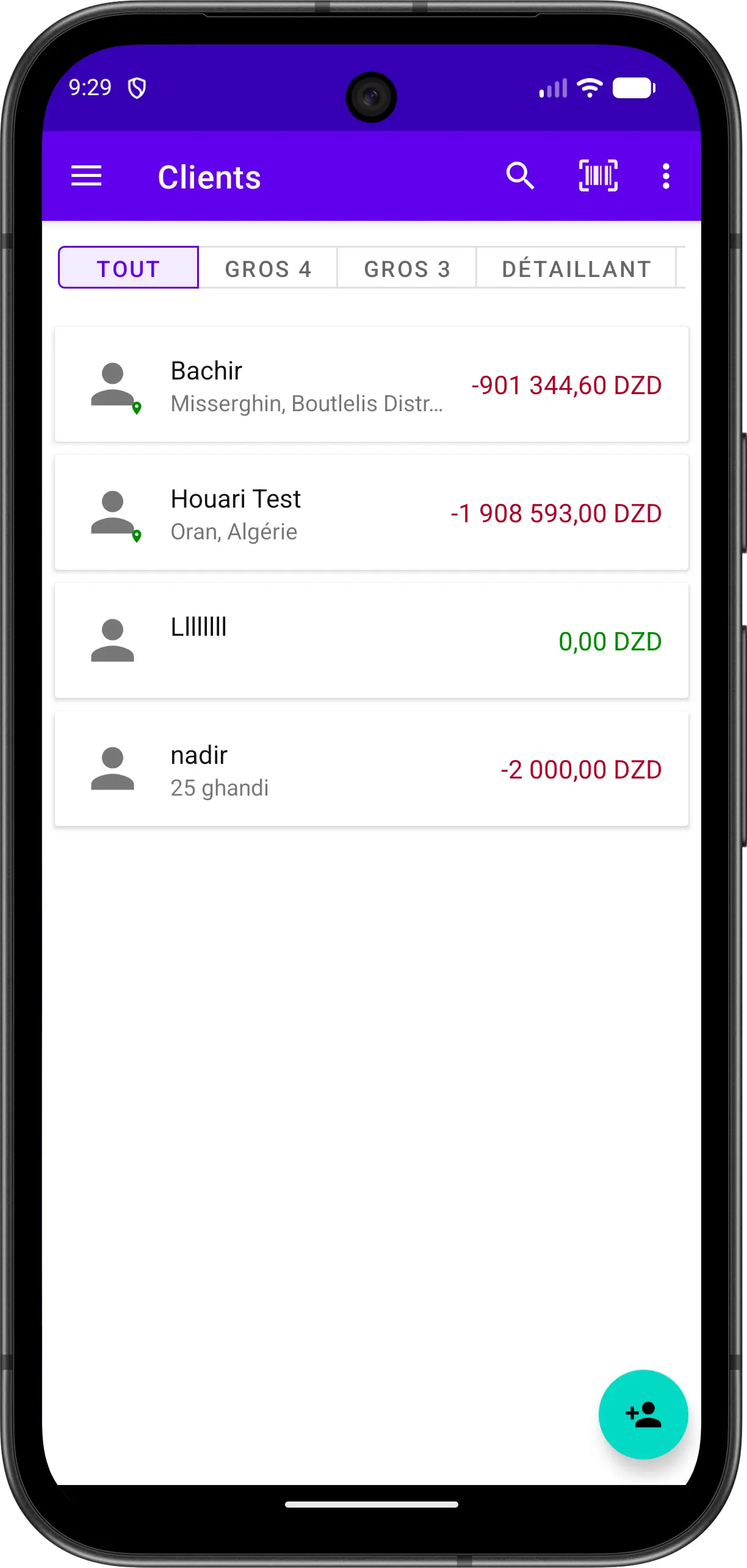
The screen displays a complete list of your customers with essential information:
| Element | Description |
|---|---|
| Category Tabs | Filter customers by type (All, Wholesale 4, Wholesale 3, Retail, etc.) |
| Location Icon | A green dot indicates that the customer's GPS location is saved |
| Customer Name | Name or business name of the customer |
| Address | City or area of the customer |
| Balance | Amount the customer owes you (in red if negative) or 0.00 if settled |
Main Usage
Browse Customers
- Scroll through the list to see all your customers
- Each customer displays their balance on the right (in red if they owe money)
Filter by Category
- Tap a category tab at the top of the list
- You will see only customers in that category
- Press ALL to reset and see all customers
Search for a Customer
- Tap the 🔍 Search icon
- Type the customer name you're looking for
- Results appear automatically
Scan a Customer
- Tap the Barcode icon
- Point your camera at the customer's code
- The customer is automatically selected
Open a Customer
- Tap the customer
- You will see the full details of the customer, their history, and transactions
- To edit the customer, tap the pencil icon at the top right
Add a New Customer
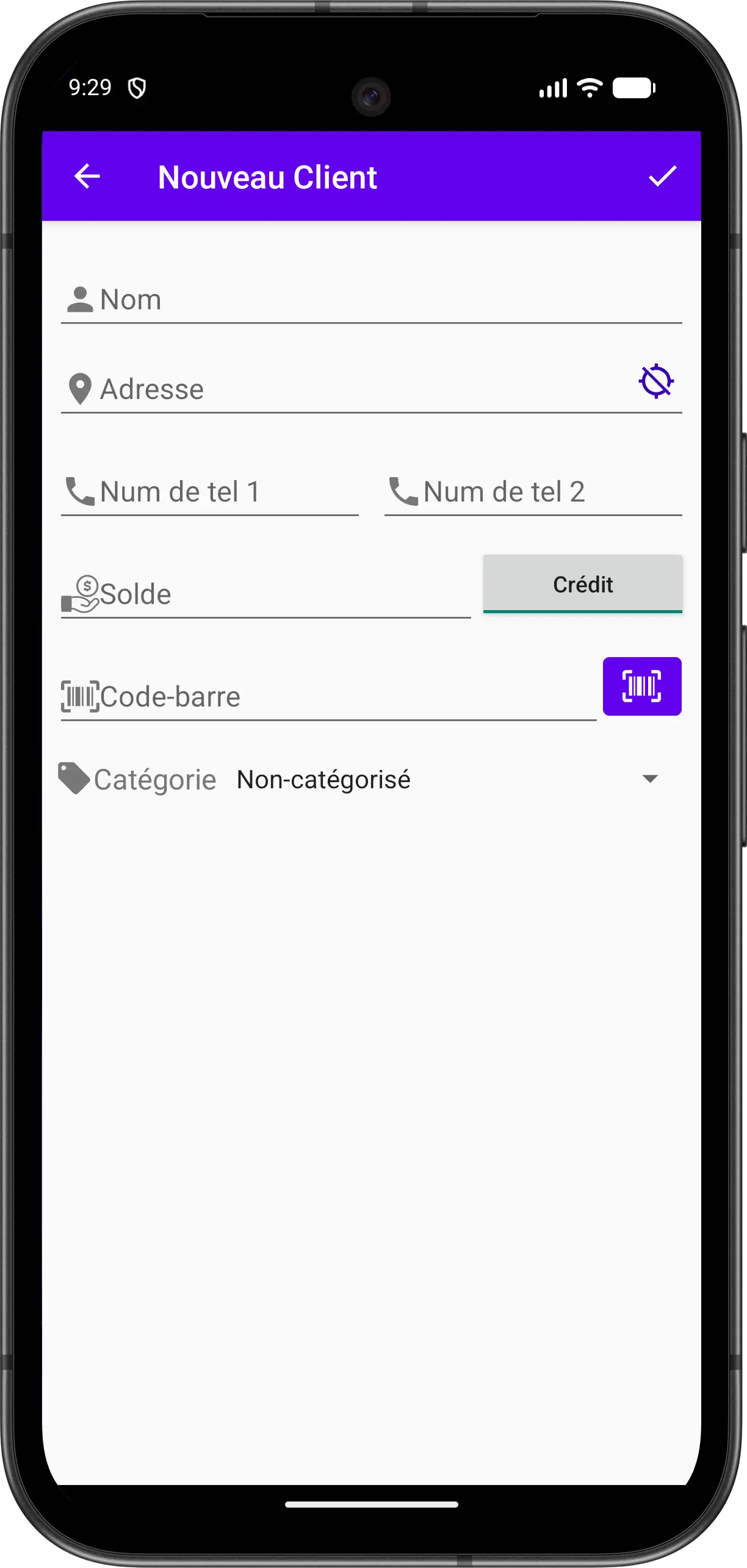
- Tap the floating button in the bottom right (person + icon)
- Fill in the form:
- Name : name or business name
- Address / Location : type the address, or, when GPS is enabled and an internet connection is available, tap the GPS icon to automatically generate the current address
- Phones : you can add up to 2 phone numbers
- Balance : the customer's initial balance
- Barcode : type the code or scan it with the camera
- Category : type of customer
- Tap the confirm icon at the top right to save
Available Operations
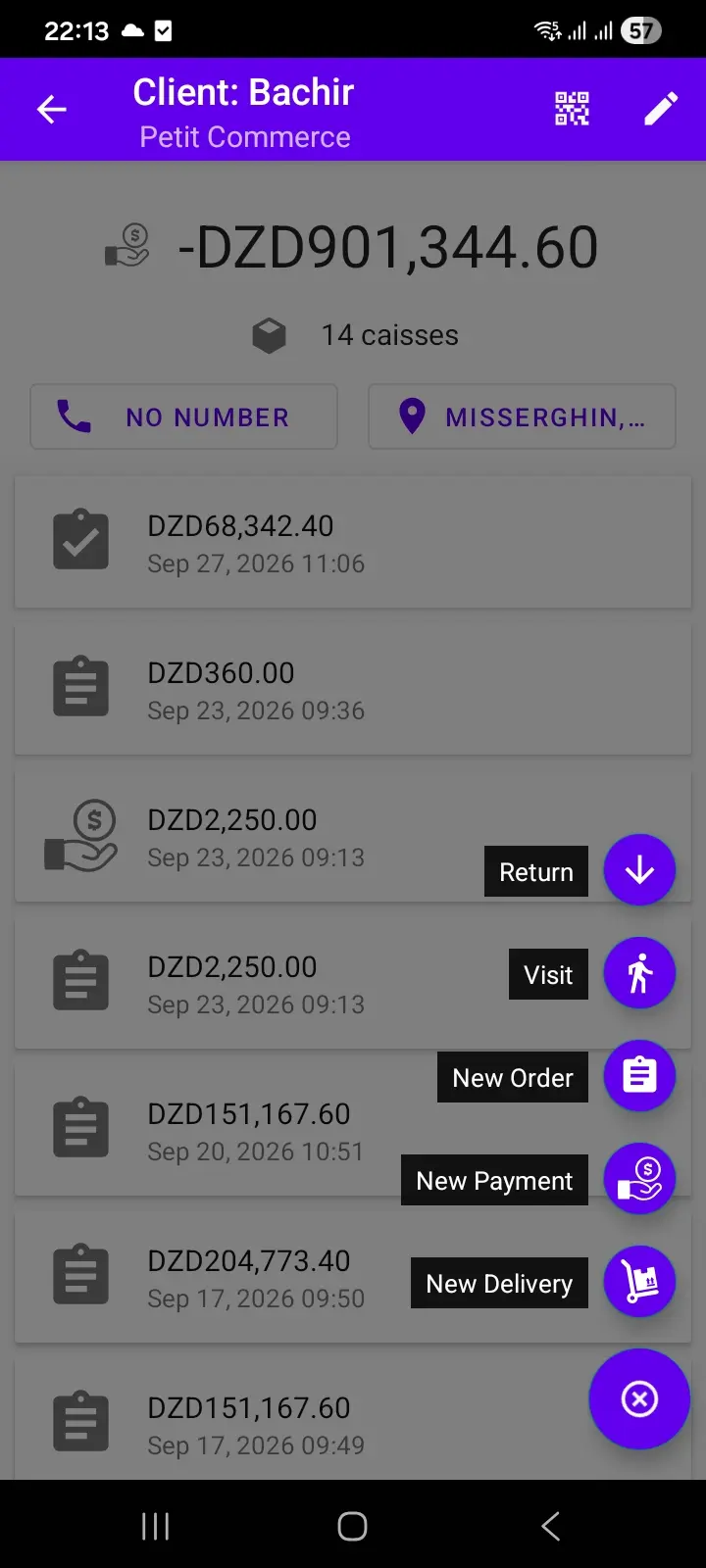
From a customer's details screen, tap the floating button to see the operations you can make for this customer:
- Delivery
- Order
- Return
- Payment
- Visit : record a visit without any order or delivery
Client Map
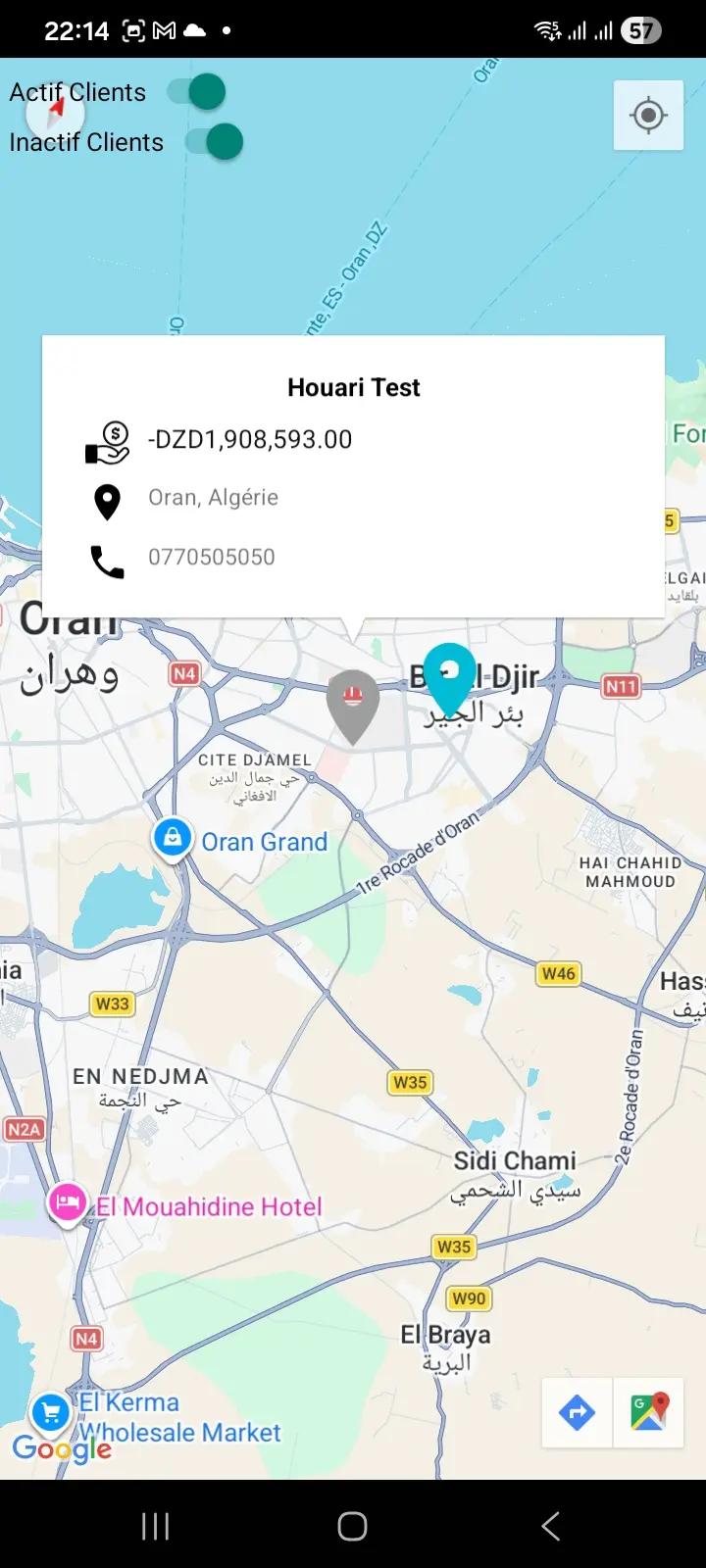
The client map lets you visualize your customers on a map:
- Use the switches at the top to show or hide active and inactive customers
- Tap a customer marker to see a summary (name, balance, address, phone)
- Select a customer to open their details screen
Practical Tips
Balance Management
- Red balances indicate that the customer owes money
- A green balance means the customer has no outstanding debt to you; they may also have a credit with you
- Check regularly to know your receivables
Using GPS Location
- Save the GPS position of each customer for faster visits
- This also makes future deliveries easier
Synchronization Status
- When a customer card is light gray, the customer's information is not yet synced with the server
- When it is dark gray, the information is synced