Operations - Prepare Orders
This guide explains how to use the Prepare Orders feature in Distritour. This function displays a consolidated list of all products needed for pending orders, facilitating warehouse preparation.
Table of Contents
1. Accessing Preparation
In the left sidebar, navigate to All Operations > Prepare Orders to access the preparation view.
2. Products to Prepare List
This page displays a consolidated view of all products required for pending delivery orders.
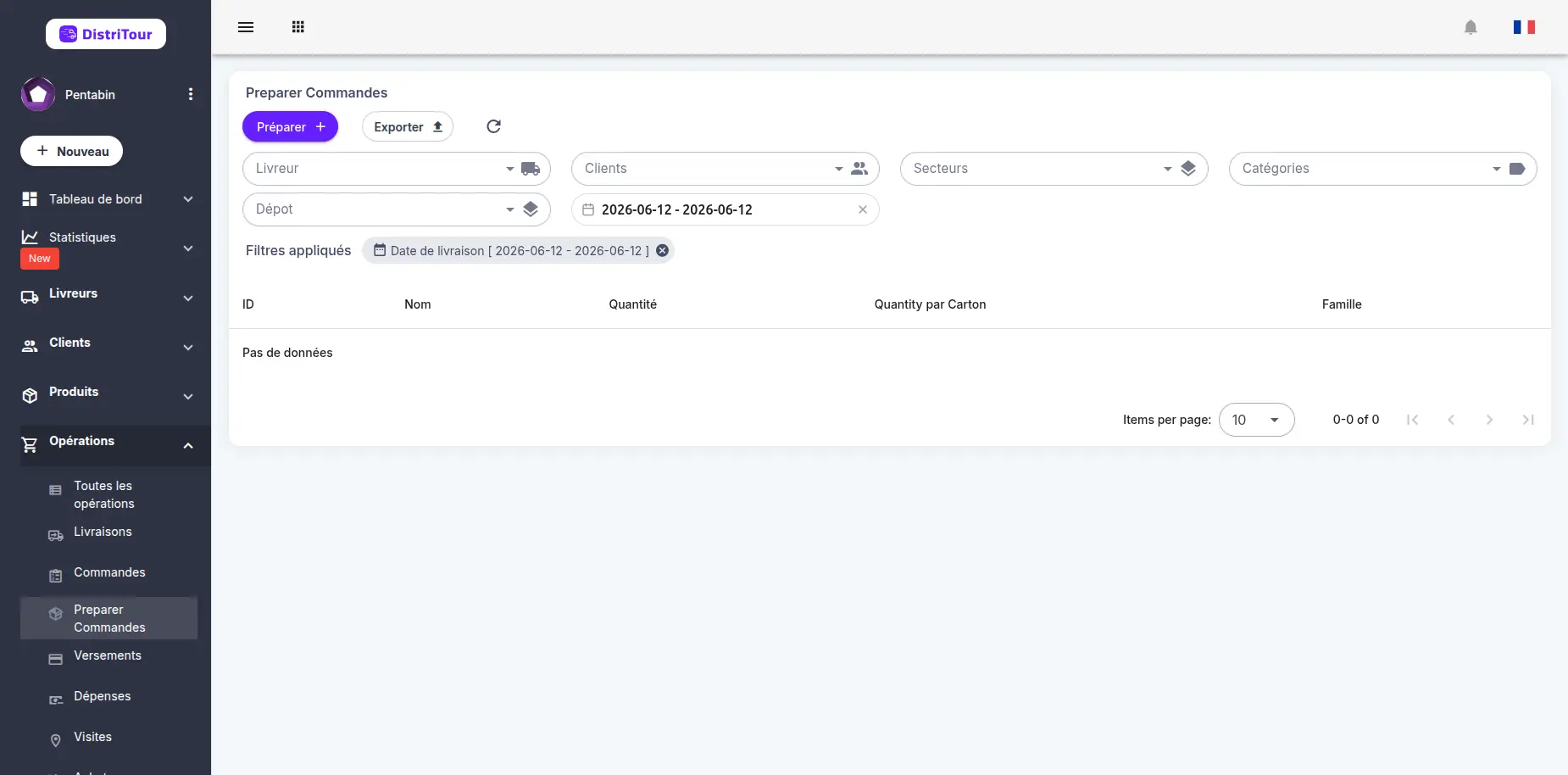
How It Works
The system analyzes all orders with the following criteria:
- Not delivered
- Order type
- Within the selected date range
For each product, the system calculates:
- Total quantity: Sum of all ordered quantities
- Promotion quantity: Offered quantities via promotions
- Box quantity: Conversion to
NxBox + remainderformat
Table Columns
| Column | Description |
|---|---|
| ID | Unique product identifier |
| Name | Product name |
| Category | Product category |
| Quantity | Total required quantity (sum of all orders) |
| Box Qty | Quantity formatted in boxes (e.g., 5x12 + 3 = 5 boxes of 12 + 3 units) |
| Quantity/Box | Number of units per box/carton |
| Buy Price | Unit purchase price |
| Sell Price | Unit sale price |
3. Available Filters
You can filter the products to prepare using several criteria:
| Filter | Description |
|---|---|
| Date | Delivery date range (default: tomorrow) |
| Carrier | Filter by carrier assigned to orders |
| Client | Filter by specific client |
| Client Category | Filter by client category |
| Tags | Filter by tags associated with clients |
| Product Category | Filter by product category |
Default Date Filter
By default, the system displays orders for tomorrow , allowing advance preparation for the next day's delivery routes.
4. Usage
Why Use This Feature?
The Prepare Orders feature enables you to:
- Optimize picking: See all required products at once without navigating order by order
- Prepare stock: Anticipate product needs for tomorrow
- Organize warehouse: Prepare boxes/cartons according to displayed quantities
- Verify promotions: Visualize quantities offered via promotions
Practical Example
If you have 3 orders containing:
- Order 1: 5x Product A
- Order 2: 3x Product A
- Order 3: 2x Product A + Promotion "1 free"
The table will display:
- Product A: Quantity = 10, Promotion Quantity = 1 (11 units total)
See Also
- Orders - Client order management
- Deliveries - Converting orders to deliveries