Operations - Orders
This guide explains how to manage orders in Distritour. An order is a product request made by a client, which can be converted into a delivery. Unlike a delivery, stock and client balance are not changed when an order is created.
Table of Contents
- Accessing Orders
- Orders List
- Convert Order to Delivery
- Creating an Order
- Editing an Order
- Deleting an Order
1. Accessing Orders
In the left sidebar, navigate to All Operations > Orders to access the order management module.
2. Orders List
The main page displays the list of all orders recorded in the system.
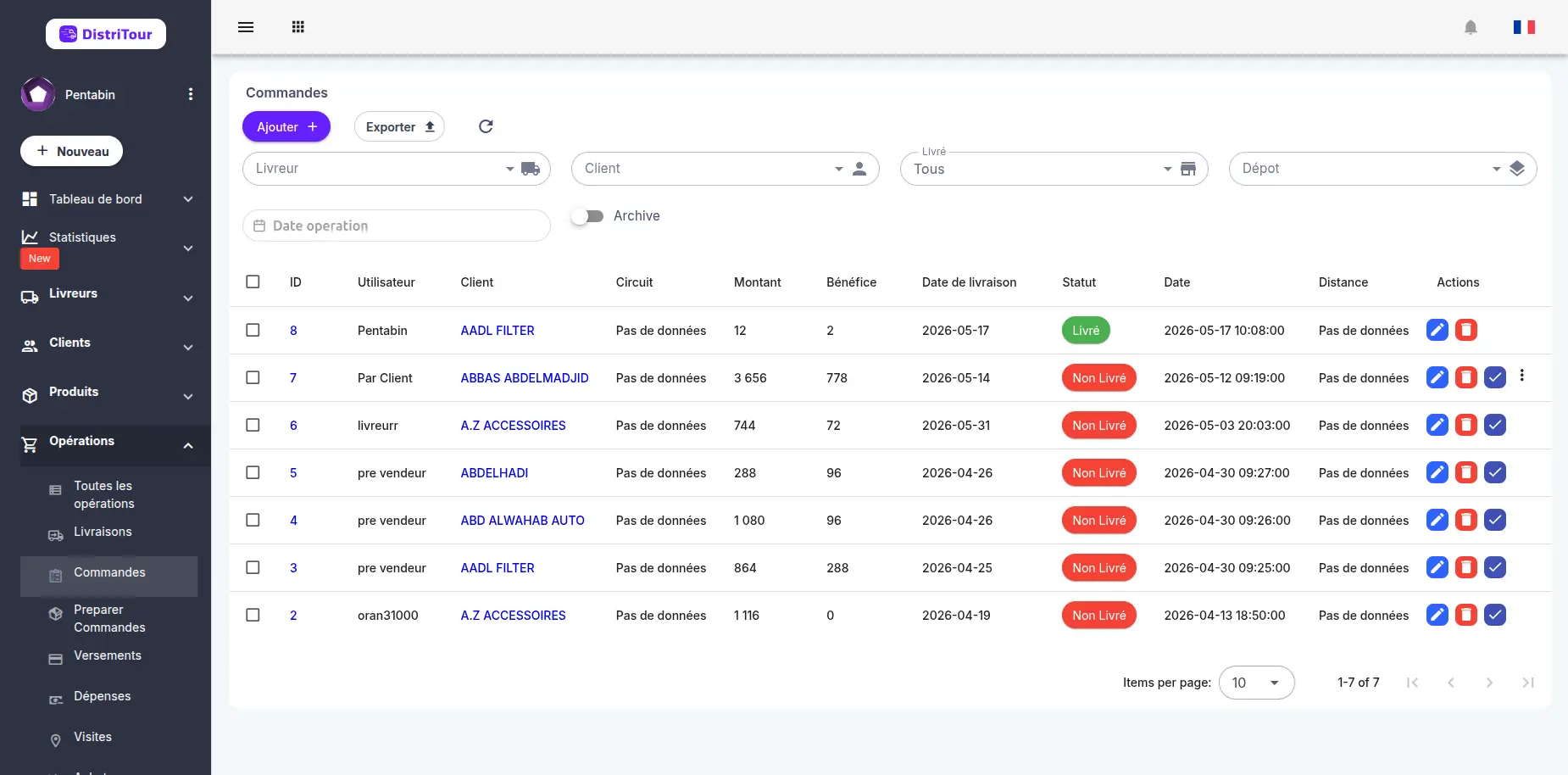
Table Columns
| Column | Description |
|---|---|
| ID | Unique identifier of the order (clickable to view details) |
| User | Carrier who will perform the order |
| Client | Client who placed the order |
| Circuit | Circuit this order belongs to (if applicable) |
| Amount | Total value of ordered products |
| Benefit | Profit margin of the order |
| Delivery Date | Scheduled date for delivery |
| Status | Order status (delivered or not) |
| Date | Date and time of order creation |
| Distance | The distance between client and carrier at the time of the operation |
| Actions | Buttons to edit, accept, deny, or delete |
Order Statuses
Orders can have the following statuses:
- Not Delivered: The order is pending
- Delivered: The order has been converted to delivery and completed
3. Convert Order to Delivery
You can convert an order to a delivery directly from the orders list:
In the list, find the order to convert.
Click the ✓ (check) icon in the Actions column.
A dialog opens with the following options:
Field Description Carrier Select the carrier who will perform the delivery (disabled if depot mode) Depot Enable this option for a depot sale delivery Payment Amount paid by the client Cash Enable this option if the client pays the full amount Fill in the required information.
Click Save to convert the order to a delivery.
Note: Once converted to a delivery, the order will be marked as "delivered" and will disappear from the pending orders list.
4. Creating an Order
- Click the New button at the top of the table.
- Fill in the creation form:
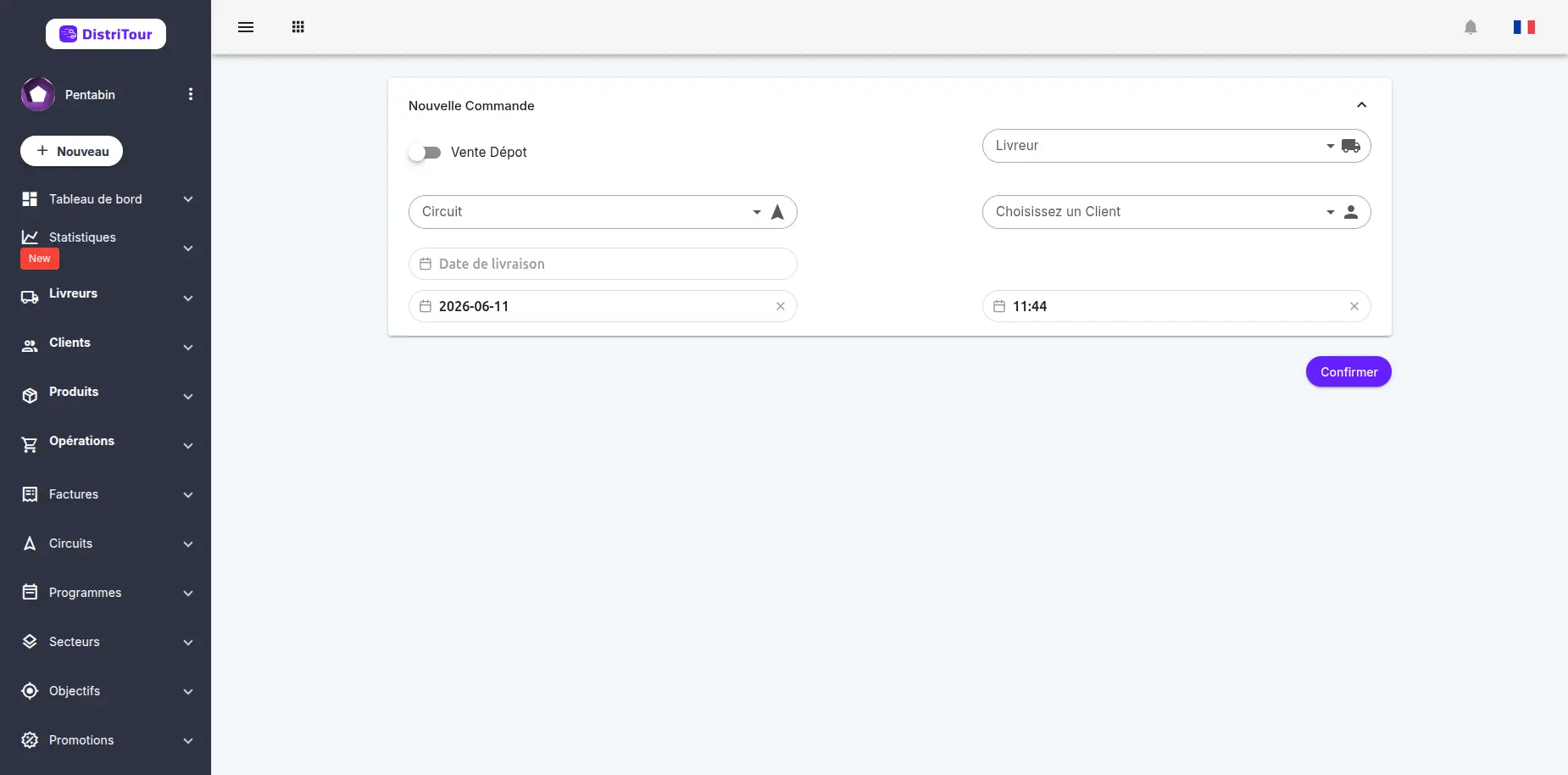
Step 1: Choose Sale Type
| Option | Description |
|---|---|
| Depot Sale | Enable this switch for direct warehouse sales. In depot sale mode, no carrier is required. |
- Normal mode (Depot Sale disabled): Select a carrier and optionally a circuit
- Depot sale mode (Depot Sale enabled): No carrier required, the sale is recorded as direct stock withdrawal
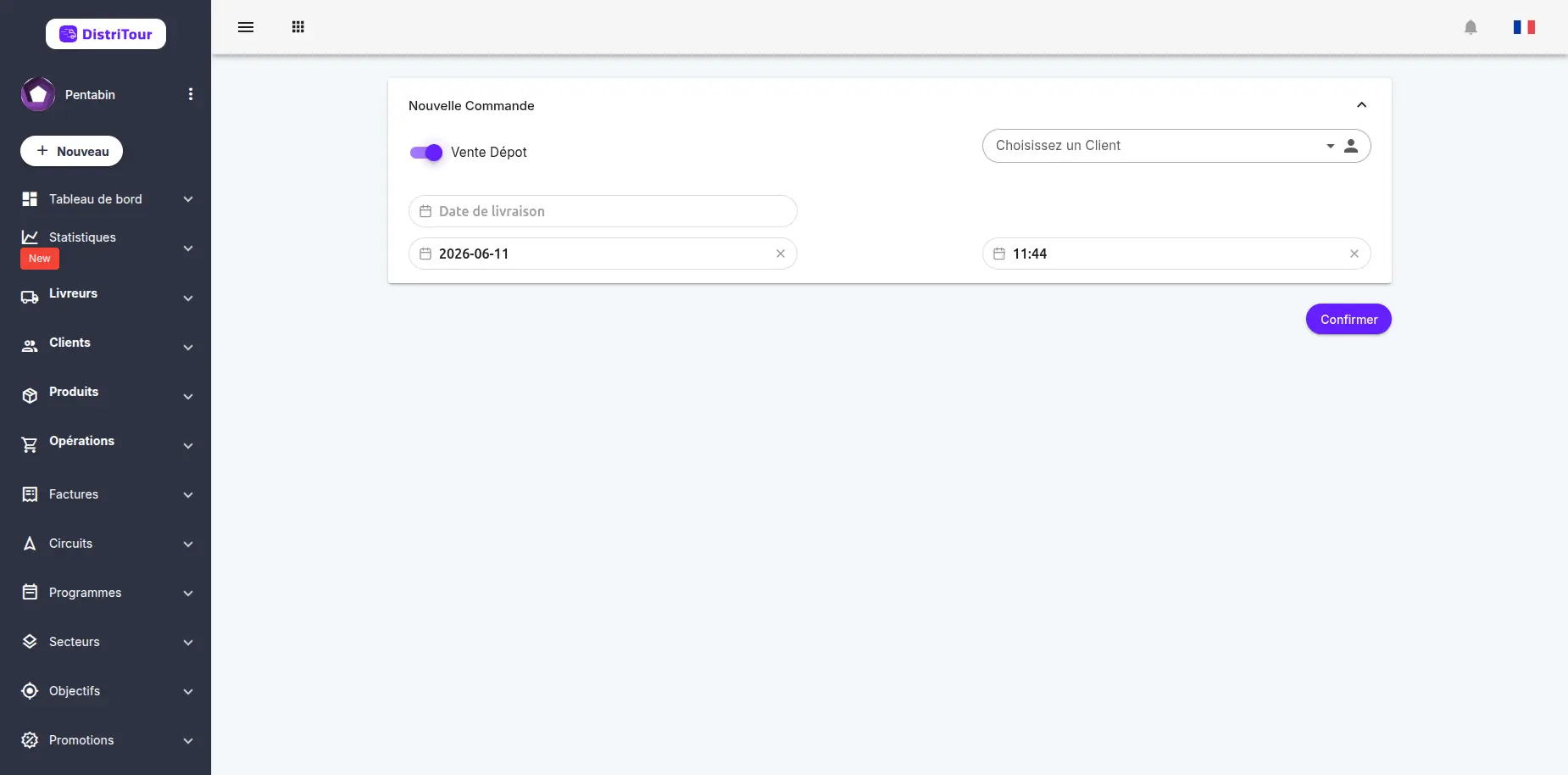
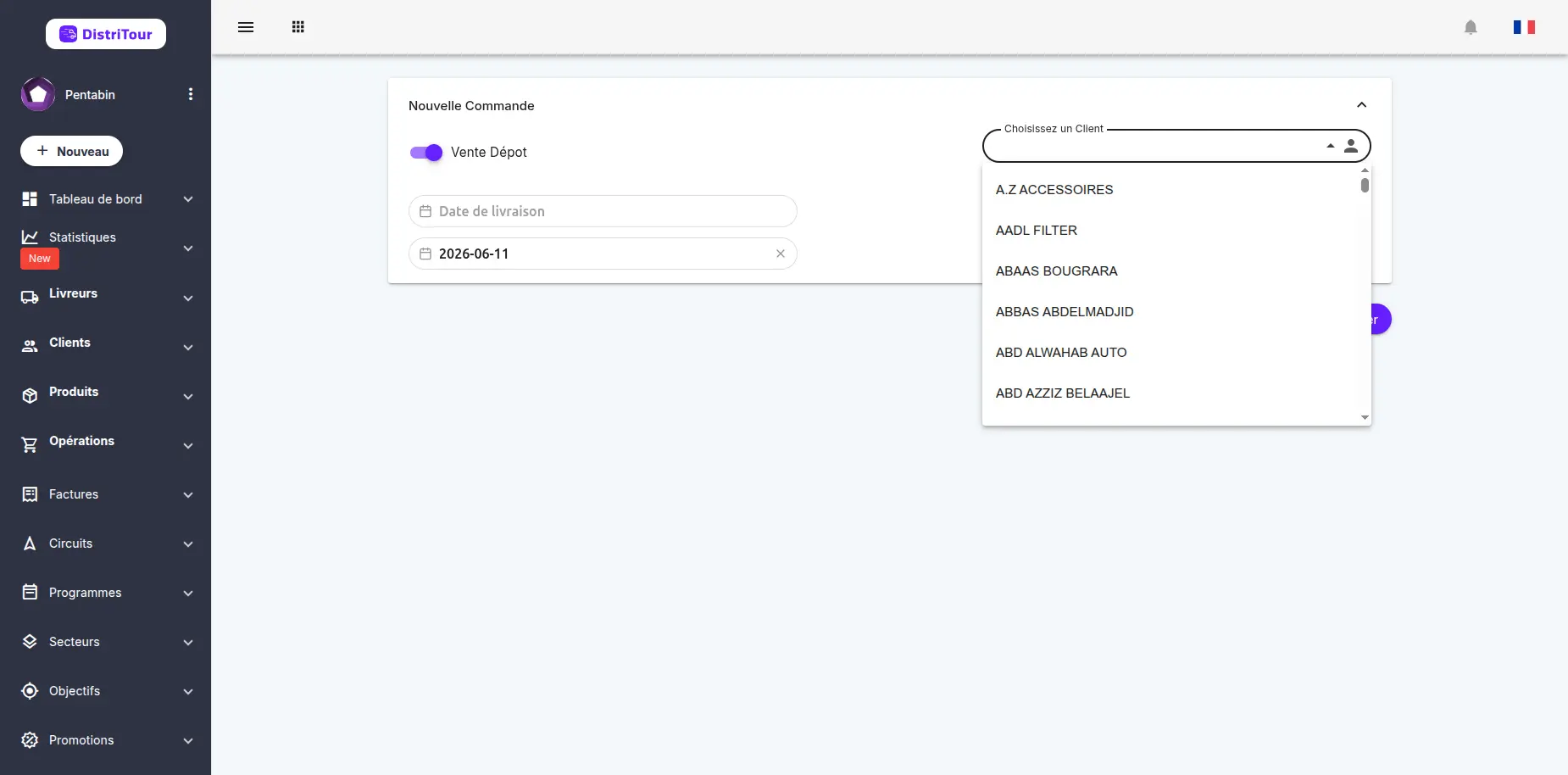
Step 2: Select Client and Dates
| Field | Required | Description |
|---|---|---|
| Carrier | Yes* | Select the carrier (*not required if depot sale) |
| Circuit | No | Circuit associated with this order (optional) |
| Client | Yes | Select the client placing the order |
| Delivery Date | Yes | Scheduled date for delivery |
| Operation Date | Yes | Date of order creation |
| Time | Yes | Time of order creation |
Important: Once the client is selected, the Items section automatically appears below.
Step 3: Add Products
After selecting the client, the Items section automatically appears:
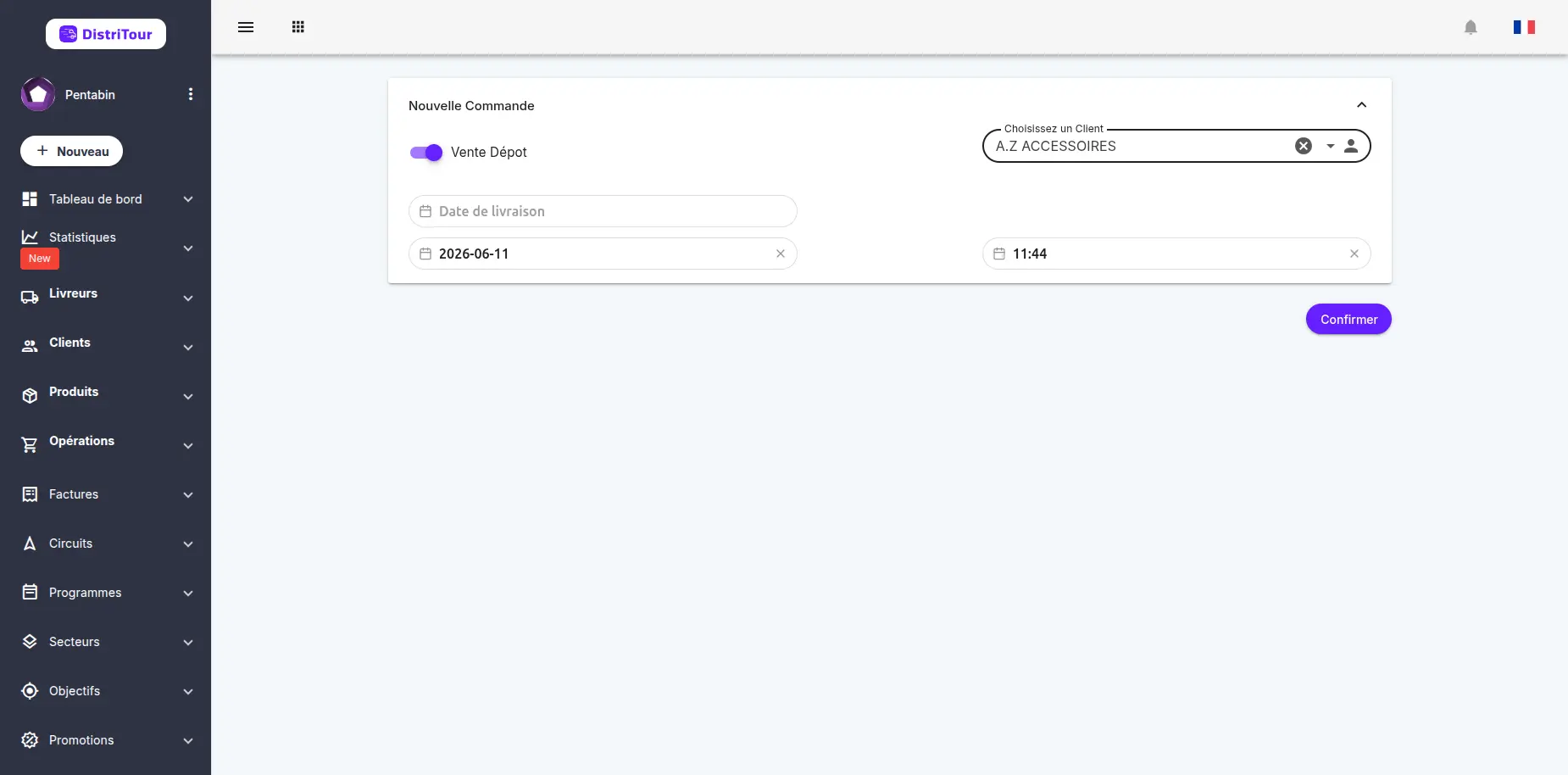
To add products:
Click the Add Item button (or the + icon)
A dialog opens with the list of available products
For each product to add:
- Select the product from the list
- Quantity: Enter the ordered quantity
- Price: The sale price fills automatically according to the client's price grid (modifiable if needed)
- Click Add or the + icon to add the product to the list
Repeat for each product to order
Step 4: Payment (optional)
For new orders, you can specify a payment:
| Field | Description |
|---|---|
| Payment | Amount paid by the client |
| Cash | Enable this option if the client pays the full amount |
Note: The "Cash" option indicates payment of the full order amount.
Step 5: Review and Save
Before saving, verify:
- The added products and their quantities
- The automatically calculated total amount
- The estimated profit
Click Save to finalize the order.
5. Editing an Order
- In the list, click the ID or edit button of the order.
- The form opens with current data.
- Modify the desired information.
- Click Save to apply the changes.
Note: An already delivered order cannot be modified.
6. Deleting an Order
⚠️ Warning: Deleting an order is permanent and affects statistics.
- In the list, select the order to delete.
- Click the delete icon in the Actions column.
- Confirm the deletion in the dialog.
Change History
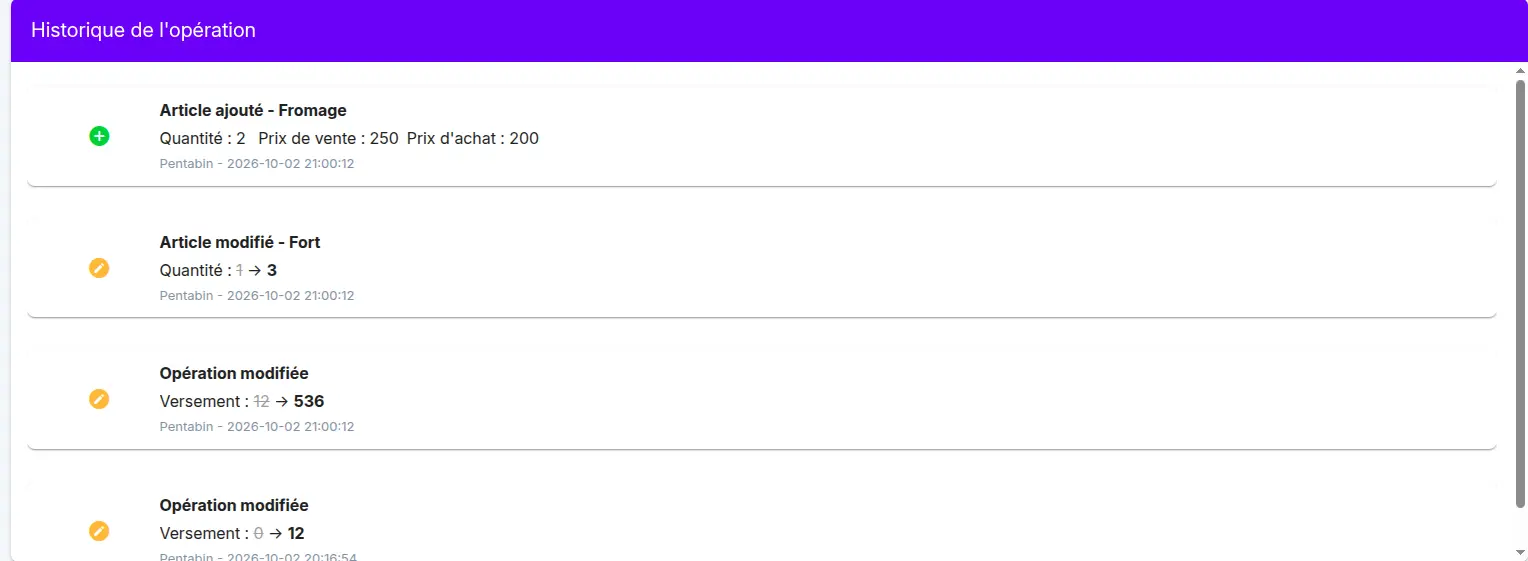
Every change made to this record is captured automatically, for example a change to the quantities, prices or items of an operation, or the amount paid.
The changes can be seen in the change history table, on the operation page. For each change, it shows:
- what happened (added, modified)
- the field concerned, with its old value crossed out and its new value
- the user who made the change and the date and time
This lets you know who changed what, and when.
See Also
- Deliveries - Orders can be converted into deliveries
- Circuits - Orders can be grouped into circuits