Getting Started with Distritour
Distritour is a comprehensive delivery and distribution management platform designed to streamline your business operations. It helps you manage carriers, products, clients, deliveries, and operations in real-time with powerful tracking and reporting capabilities. Visit www.distritour.com to learn more about the platform.
Step 1: Create Your Account
To get started, you need to create an account on the Distritour platform.
- Navigate to the registration page
- Fill out the registration form with your company information
- Submit the form
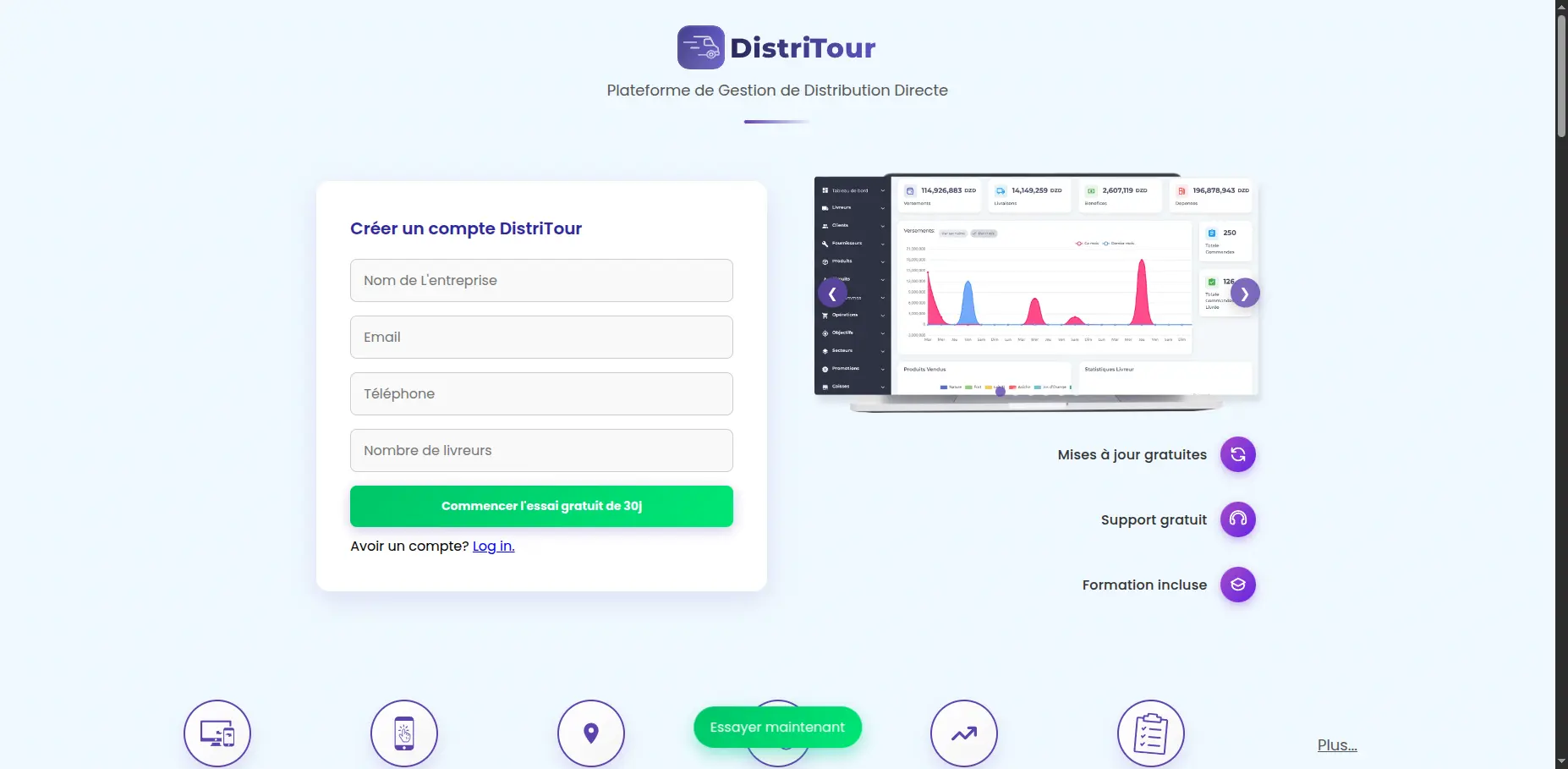
Note: Once you submit the registration form, our sales team will contact you to activate your account. This verification step ensures security and proper setup.
Step 2: Log In to Your Account
Once your account is activated, you can log in to access the dashboard.
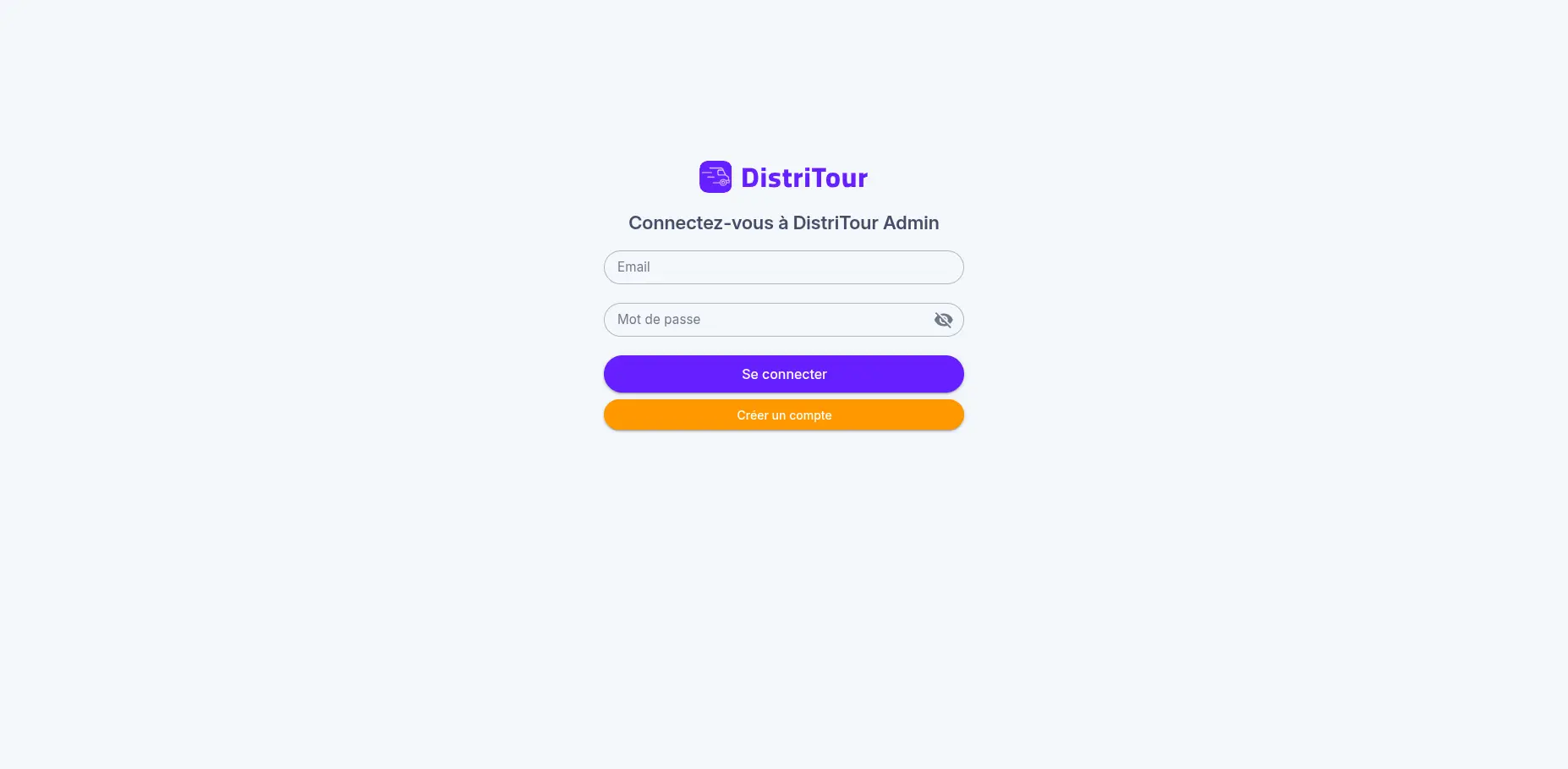
- Navigate to the login page
- Enter your email address and password
- Click Se connecter to log in
Step 3: Complete the Onboarding Process
After logging in, you will be directed to the dashboard where an onboarding screen will guide you through the initial setup. The onboarding process consists of three essential steps:
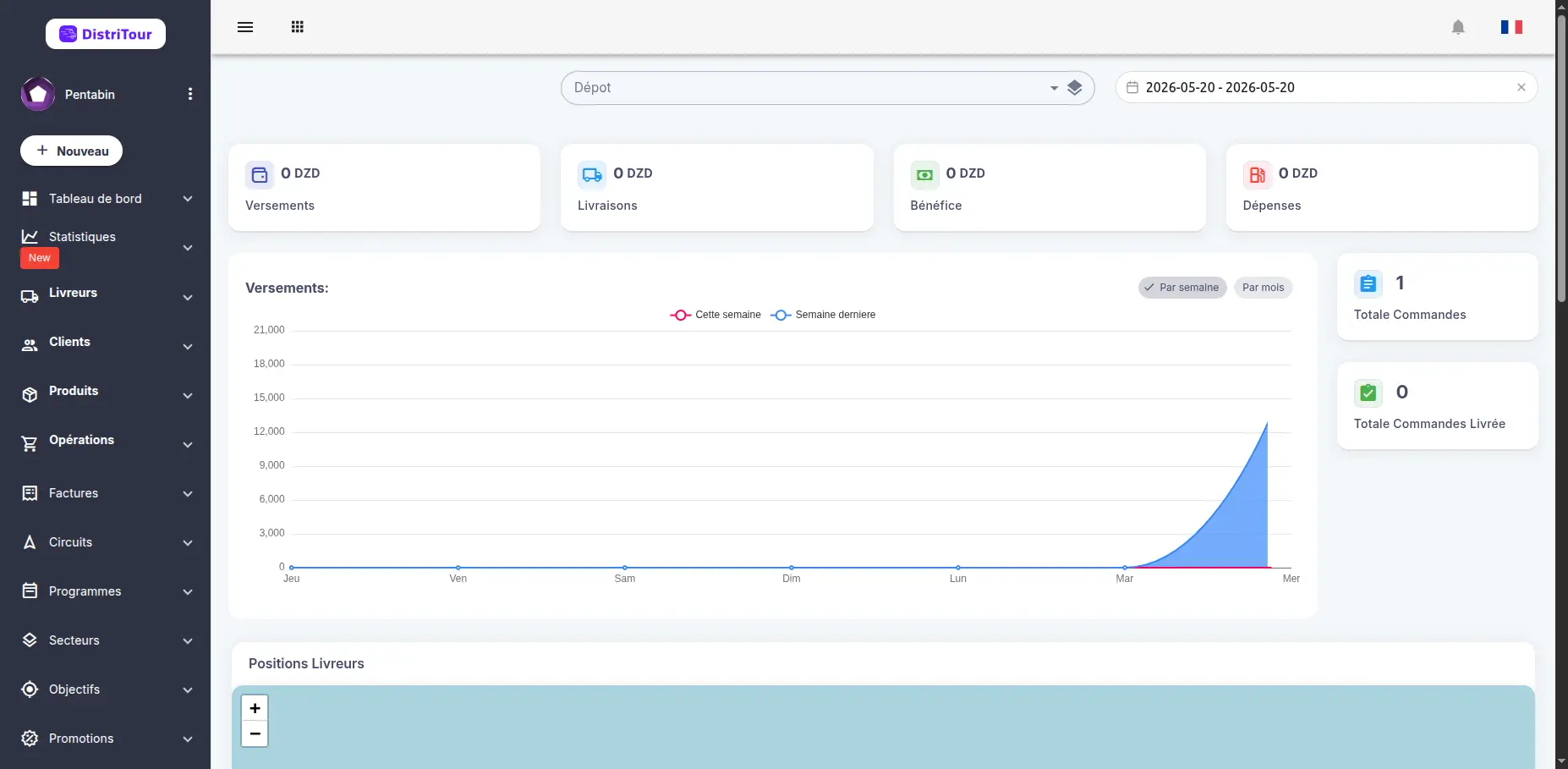
3.1 Create Your First Carrier
The first step is to create a carrier (delivery driver) who will handle deliveries.
- Click on the carrier creation step in the onboarding wizard
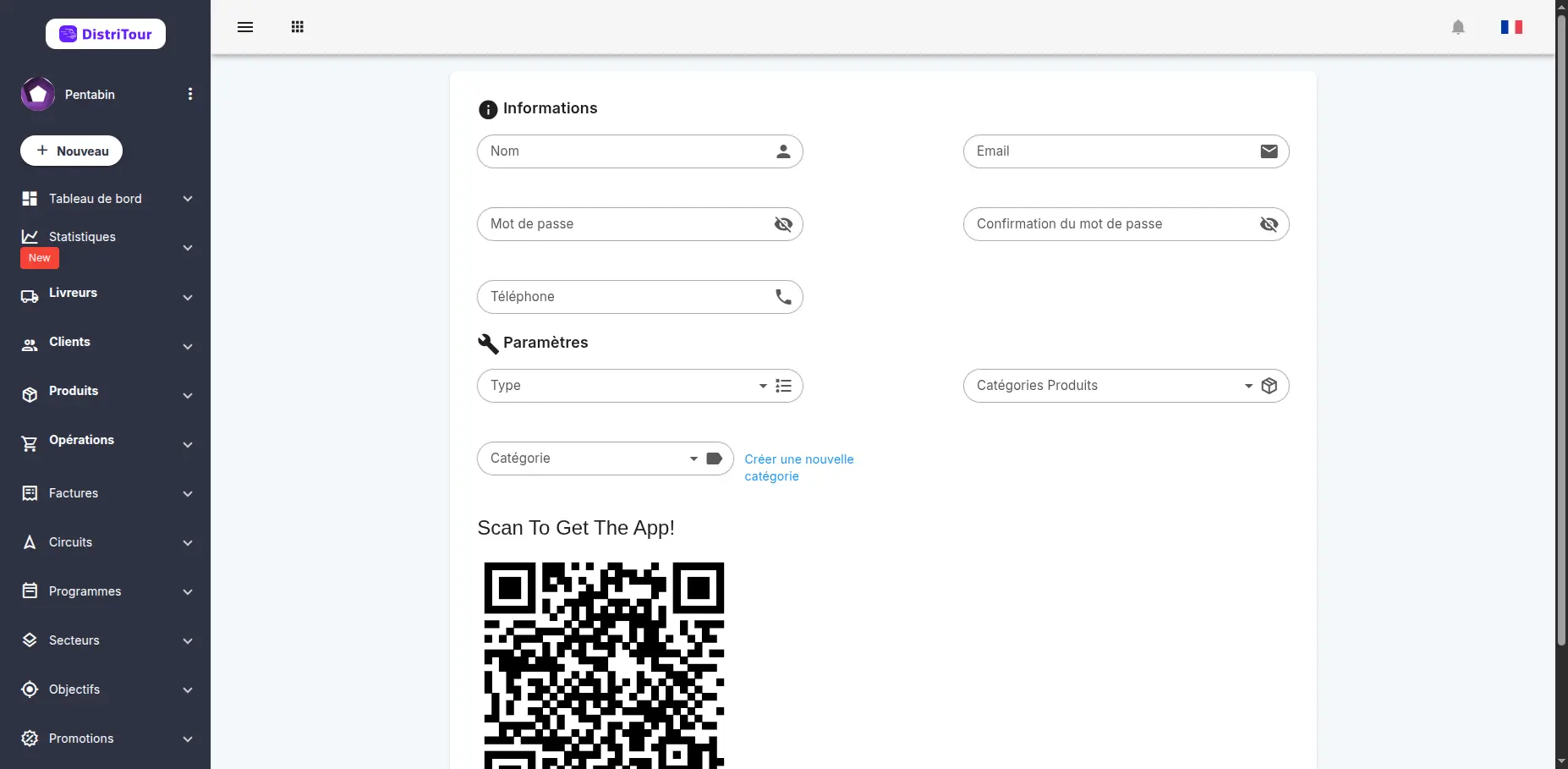
- Fill in the carrier form with the following information:
- Name - Full name of the carrier
- Email - Email address (auto-generated from name)
- Phone - Contact phone number
- Type - Carrier type (Livreur, Pré vendeur, Cash Van, etc.)
- Category - Organizational category
- Product Categories - Products the carrier can access
Download the Carrier Mobile App
After creating the carrier, a QR code will be displayed on the form page. The carrier can scan this QR code with their smartphone to download the Distritour mobile app. Once installed, they can log in using their credentials and start managing deliveries on the go.
3.2 Create Your First Product
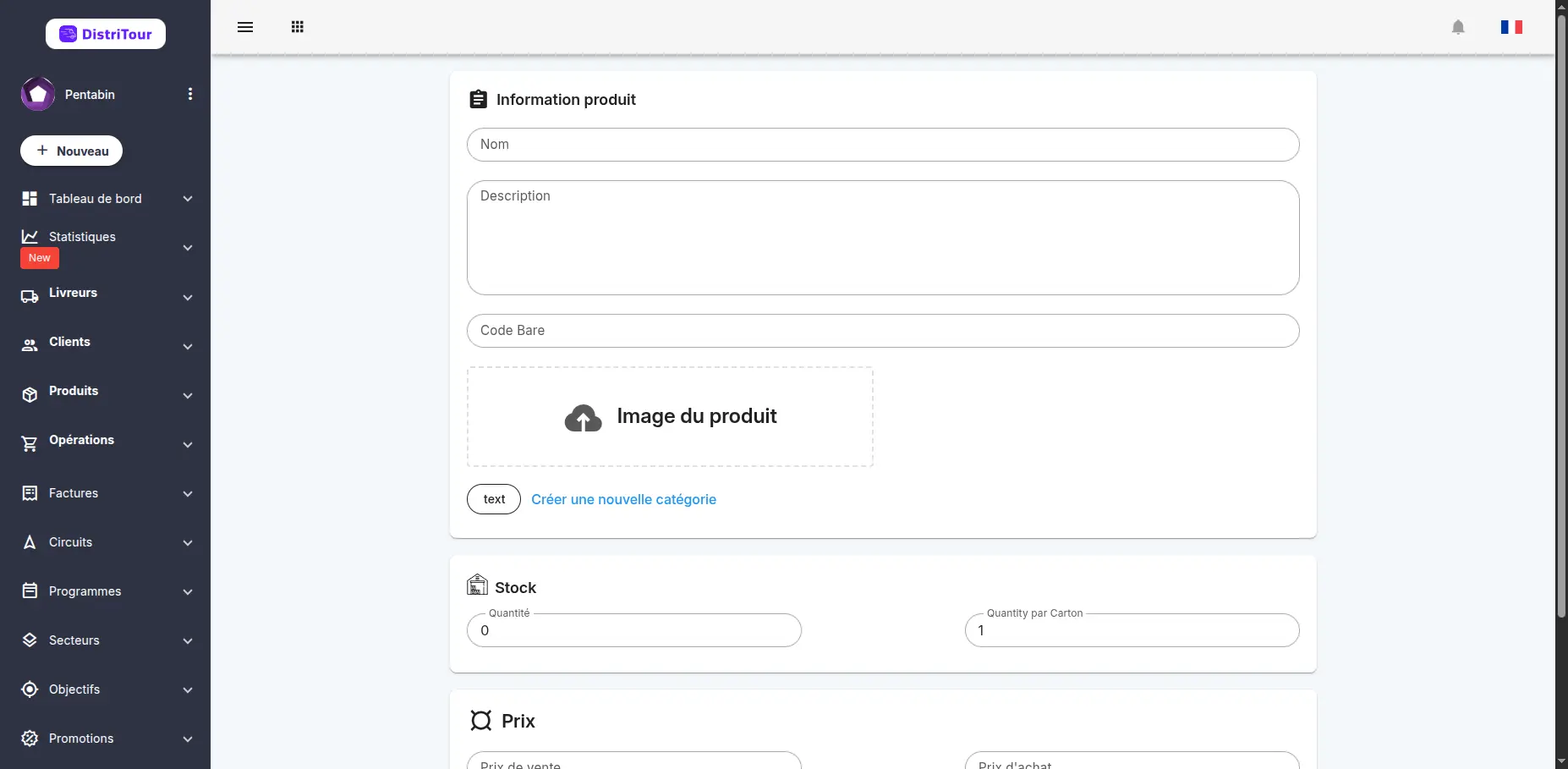
Next, you need to create a product that the carrier will deliver.
- Click on the product creation step in the onboarding wizard
- Fill in the product form with the necessary information:
- Name - Product name
- Description - Detailed product description
- Barcode - Product barcode (optional)
- Image - Product image upload
- Category - Product category
- Quantity - Stock quantity
- Quantity by Pack - Quantity per pack/box
- Buy Price - Purchase price
- Sell Price - Selling price
3.3 Create Your First Client
Finally, create your first client to whom the carrier will deliver products.
- Click on the client creation step in the onboarding wizard
- Fill in the client form with basic information:
- Name - Client name
- Balance - Initial account balance
- Phone - Contact phone number
- Other details can be added later as needed
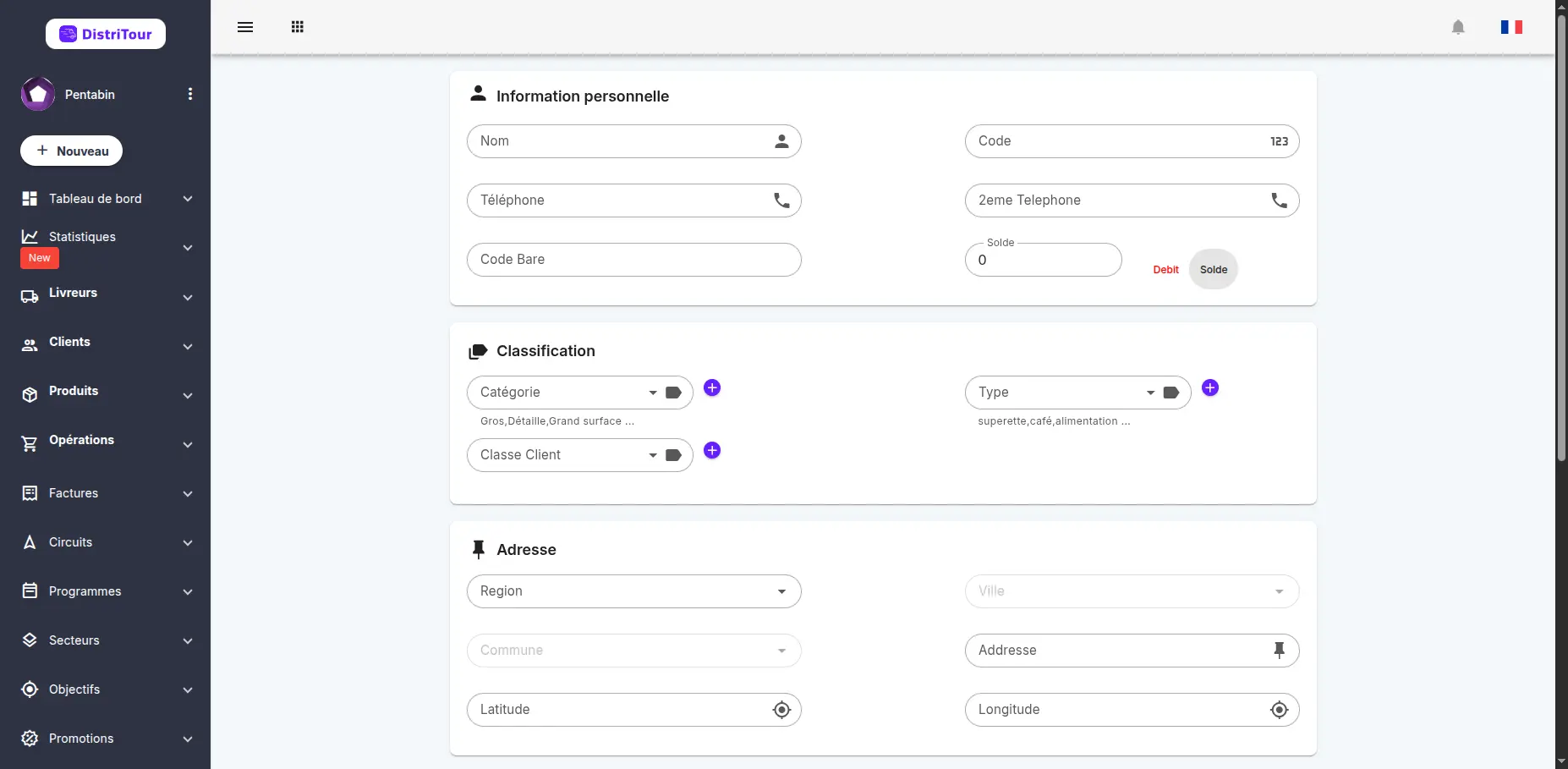
Tip: You can add more detailed client information (address, category, etc.) later from the client management section.
Step 4: Automatic Circuit Creation
Once you complete the onboarding process, an open circuit will be automatically created for you. This circuit allows your newly created carrier to:
- Register new clients on the field
- Create and manage operations (deliveries, orders, payments, returns)
- Sync all data to the dashboard in real-time
Real-Time Data Synchronization
Every operation performed by the carrier on the mobile app is immediately synchronized with the central dashboard. You can:
- View the synced data on the main dashboard
- Track carrier positions and activities
- Monitor operations across the entire app
- Access real-time reports and statistics
This ensures you always have up-to-date information about your business operations.
Next Steps
After completing the initial setup, you can explore additional features to optimize your operations:
View Statistics
Access comprehensive statistics and reports to analyze your business performance:
- Sales and delivery metrics
- Carrier performance analytics
- Product sales data
- Revenue tracking
Navigate to Statistiques in the sidebar to explore these reports.
Configure Programs for Carriers
Set up delivery programs and schedules for your carriers:
- Define delivery routes and sectors
- Set working hours and schedules
- Configure service areas
Navigate to Programmes in the sidebar to configure these settings.
Configure Promotions
Create and manage promotional offers to boost sales:
- Discount campaigns
- Special offers for clients
- Time-limited promotions
Navigate to Promotions in the sidebar to set up promotions.
Configure Goals
Set performance goals for your carriers and track their progress:
- Sales targets
- Delivery quotas
- Performance metrics
Navigate to Objectifs in the sidebar to configure and track goals.
Need Help?
If you need assistance with any step in the getting started process:
- Check the detailed guides in the documentation
- Contact our support team
- Visit www.distritour.com for more resources
Welcome to Distritour! We're excited to help you streamline your delivery operations.