Cash Registers & Movements
This guide explains how to manage cash registers (user balances) and view movements (full history of all financial transactions) in Distritour.
Table of Contents
- Cash Registers
- Cash Register Table
- Initializing a Cash Register
- Transferring Between Cash Registers
- Movements
- Movements Table
- Export
1. Cash Registers
A cash register (caisse) represents the financial balance associated with a user (carrier, web user, or administrator). Each user has a cash register that is credited or debited as operations occur.
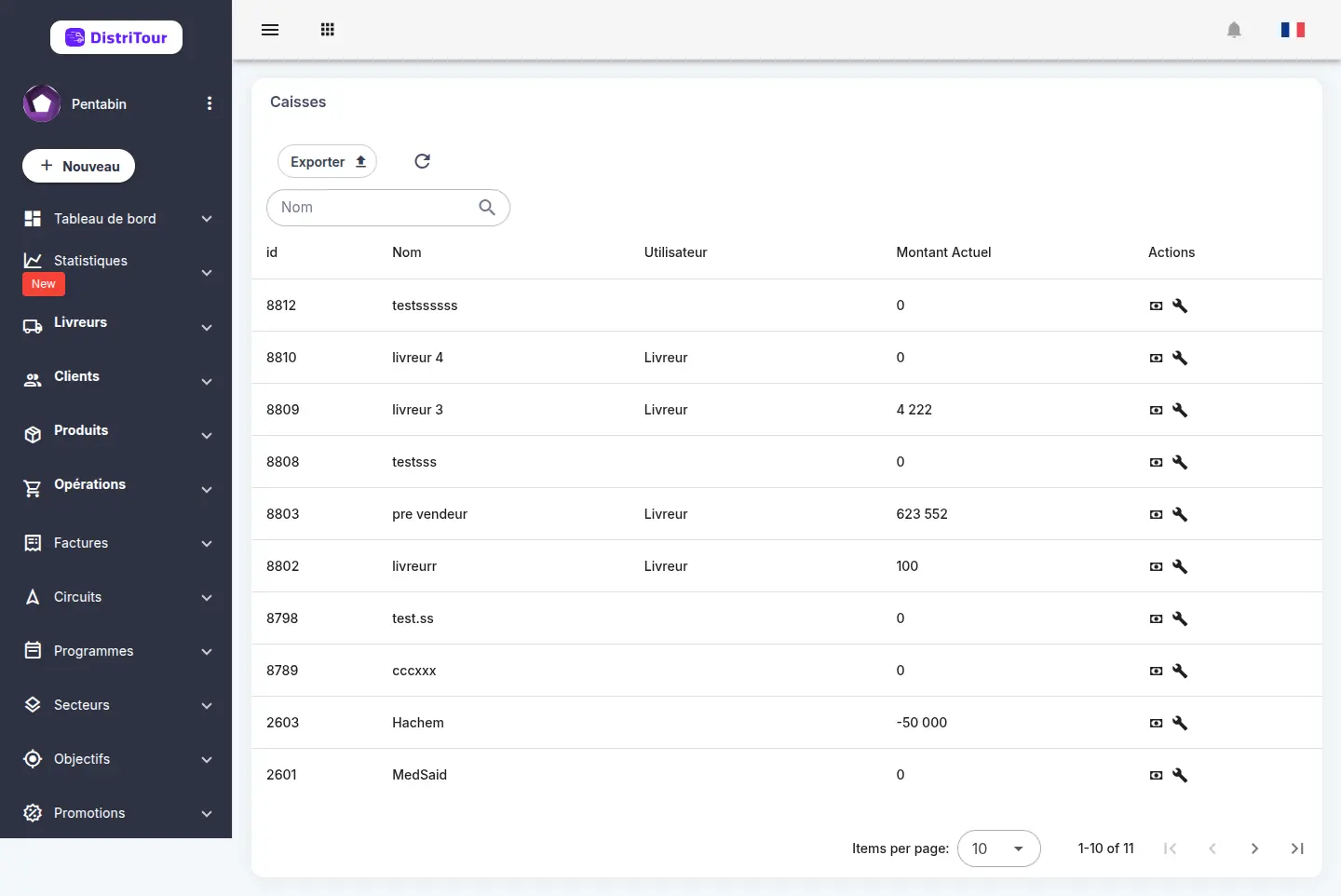
In the sidebar, click Caisses to open the module.
2. Cash Register Table
| Column | Description |
|---|---|
| ID | Unique identifier of the cash register |
| Name | Name of the associated user |
| User | User type: Carrier, Web User, or Admin |
| Current Balance | Current balance of the cash register |
| Actions | Buttons to initialize, transfer, edit, or delete |
Create a New Money Box
At the top of the cash register list, click the Add Money Box button to create a new cash register.
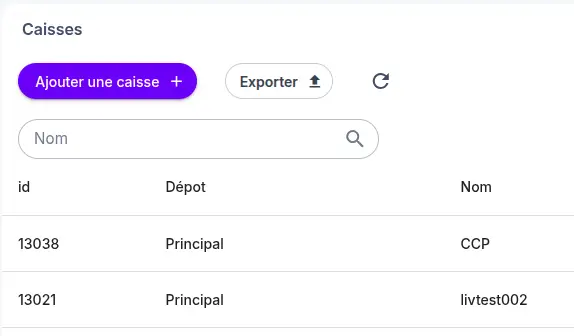
The creation form appears:

| Field | Required | Description |
|---|---|---|
| Name | Yes | Name of the cash register |
| Current Balance | No | Opening balance of the cash register (only when creating) |
| Zone | No | Zone associated with the cash register (shown if zones are enabled) |
Click Save to create the cash register. The new cash register then appears in the list.
3. Initializing a Cash Register
Initialization sets the opening balance of a cash register.
- In the cash register list, click Initialize for the desired user.
- The old balance is displayed as read-only for reference.
- Enter the amount to initialize.
- Click Save.
⚠️ Initialization creates a movement of type Cash Register Initialization in the history.
4. Transferring Between Cash Registers
A transfer moves an amount from one cash register (sender) to another (receiver).
- In the cash register list, click Transfer for the sender user.
- Select the sender and the receiver.
- Both parties' current balances are displayed automatically.
- Enter the amount to transfer.
- Click Save.
The movement is recorded as Cash Register Transfer in the history.
5. Movements
Movements represent the complete history of all financial operations affecting cash registers. Every action (payment, expense, initialization…) generates a tracked movement.
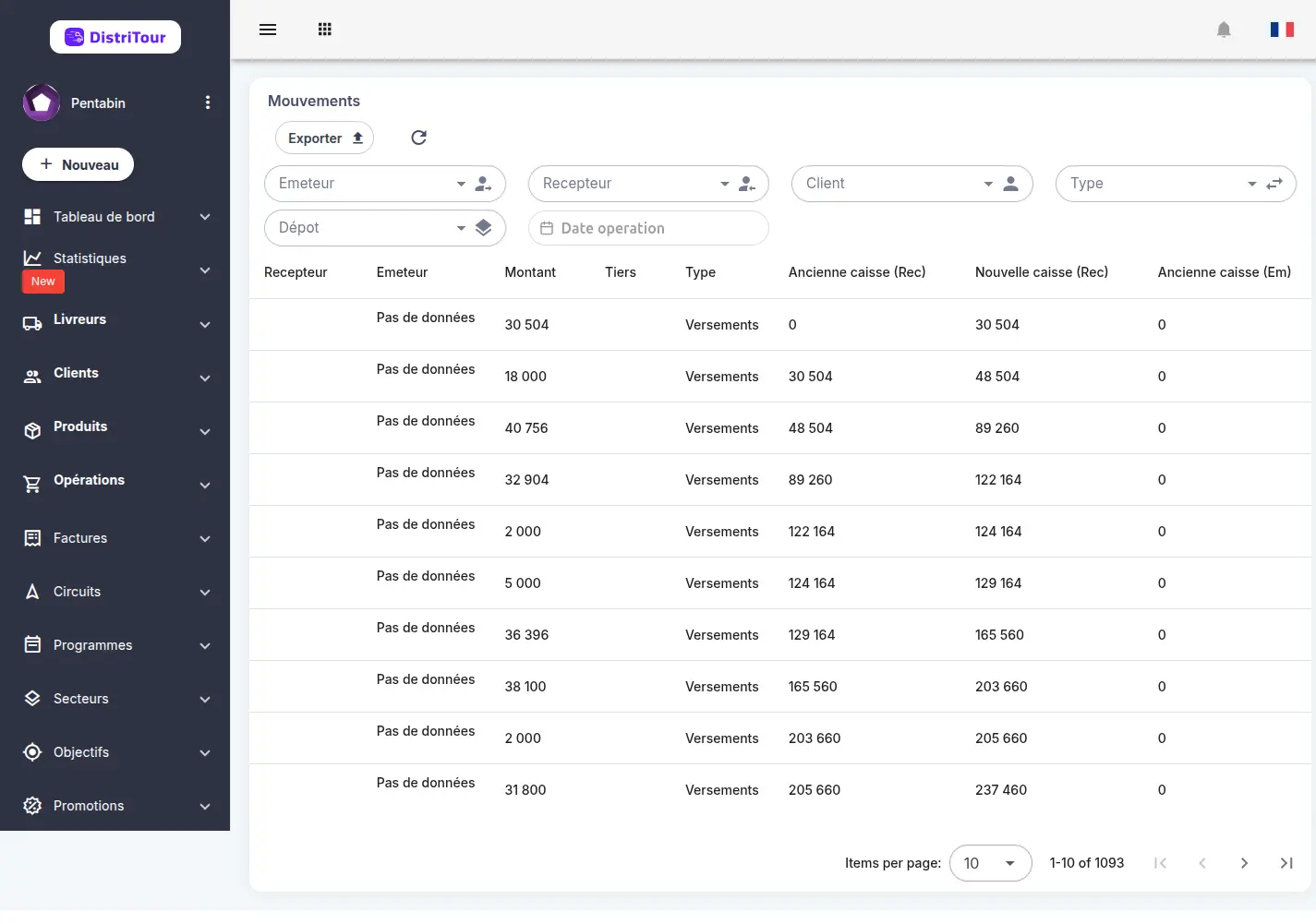
In the Caisses menu, click Movements to access the list.
6. Movements Table
| Column | Description |
|---|---|
| Receiver | User whose cash register was credited |
| Sender | User whose cash register was debited |
| Amount | Transaction amount |
| Client/Supplier | Related client or supplier (if applicable) |
| Type | Movement type (see list below) |
| Old Caisse (Ex) | Sender's balance before the transaction |
| New Caisse (Ex) | Sender's balance after the transaction |
| Old Caisse (Em) | Receiver's balance before the transaction |
| New Caisse (Em) | Receiver's balance after the transaction |
| Date | Date and time of the movement |
Movement Types
| Type | Description |
|---|---|
| Payment | Payment received from a client |
| Supplier Payment | Payment made to a supplier |
| Expense | Recorded expense |
| Edit Payment | Modification of an existing payment |
| Edit Supplier Payment | Modification of a supplier payment |
| Edit Expense | Modification of an expense |
| Delete Payment | Cancellation of a payment |
| Delete Supplier Payment | Cancellation of a supplier payment |
| Delete Expense | Cancellation of an expense |
| Cash Register Initialization | Opening balance set for a cash register |
| Cash Register Transfer | Transfer between two cash registers |
7. Export
The movements list can be exported to CSV using the Export button at the top of the table. The export includes all columns: sender, receiver, amount, client/supplier, type, old/new balances, and date.