Program Management
This guide explains how to view and configure delivery programs in Distritour. A program is a way to automate circuit creation: you define the sectors the carrier will visit each day of the week. Every day, the carrier automatically receives the list of clients from the sectors defined in their program.
Table of Contents
- Accessing the Programs Module
- Program Calendar View
- Editing a Program
- Configuration Fields
- Managing Rotations
- Saving Changes
- Deleting a Program
- Notes
1. Accessing the Programs Module
In the left sidebar, click on Programmes to open the module.
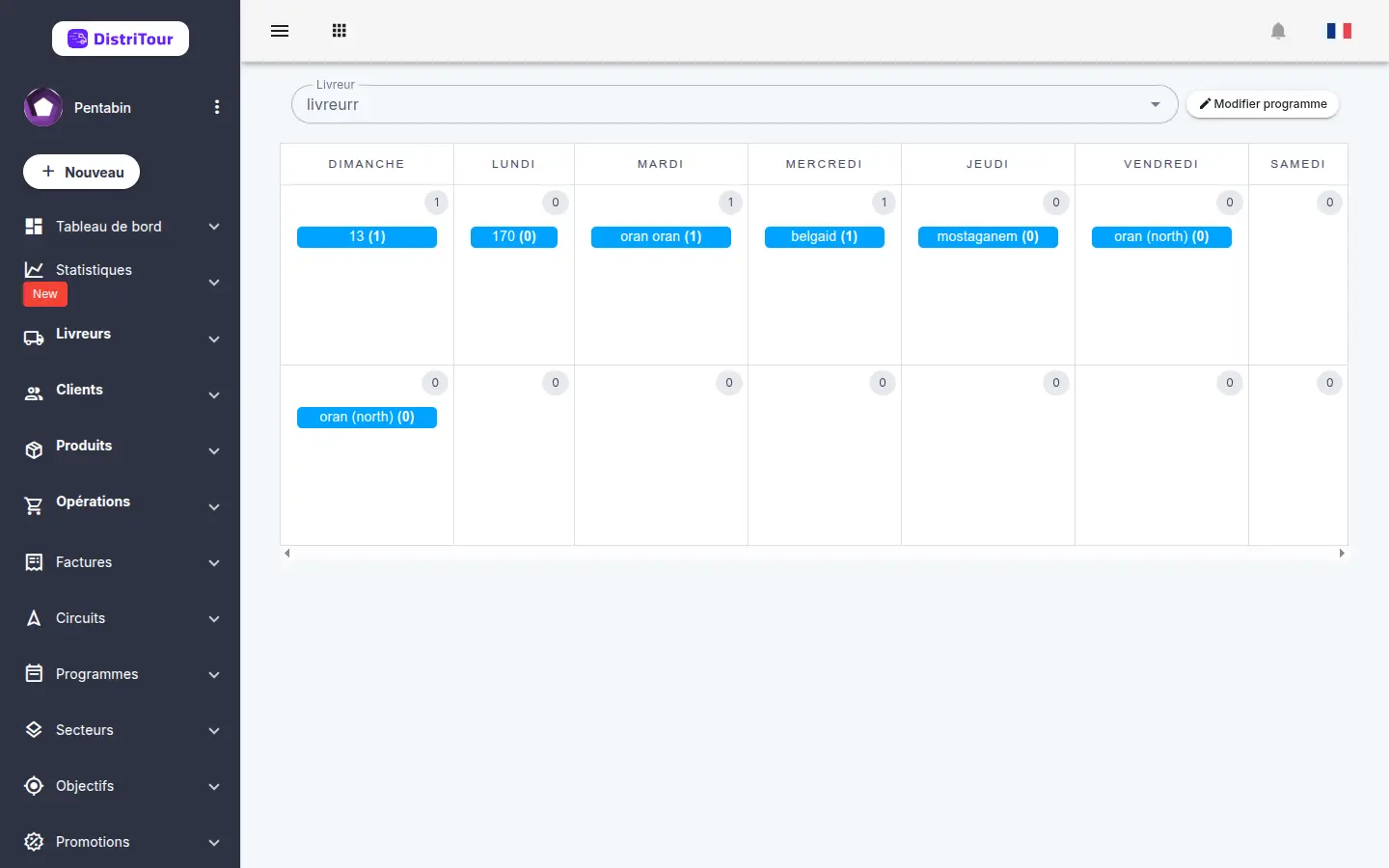
The page displays:
- A carrier filter — select a carrier to view their program.
- A weekly table — each column represents a day of the week (Sunday to Saturday), each row corresponds to a rotation. Cells show the sectors assigned for each day/rotation.
- An "Edit Program" button — to switch to edit mode.
2. Program Calendar View
The weekly table shows the selected carrier's schedule:
| Element | Description |
|---|---|
| Row (Rotation N°) | Each rotation represents one week cycle. A carrier can have multiple rotations (e.g. Rotation 1 = week 1, Rotation 2 = week 3…). |
| Columns (Days) | Sunday, Monday, Tuesday, Wednesday, Thursday, Friday, Saturday |
| Cell | Sector(s) assigned for that day and rotation |
An empty or unconfigured program will show empty cells.
3. Editing a Program
- Select the carrier from the filter at the top of the page.
- Click Edit Program ✏️.
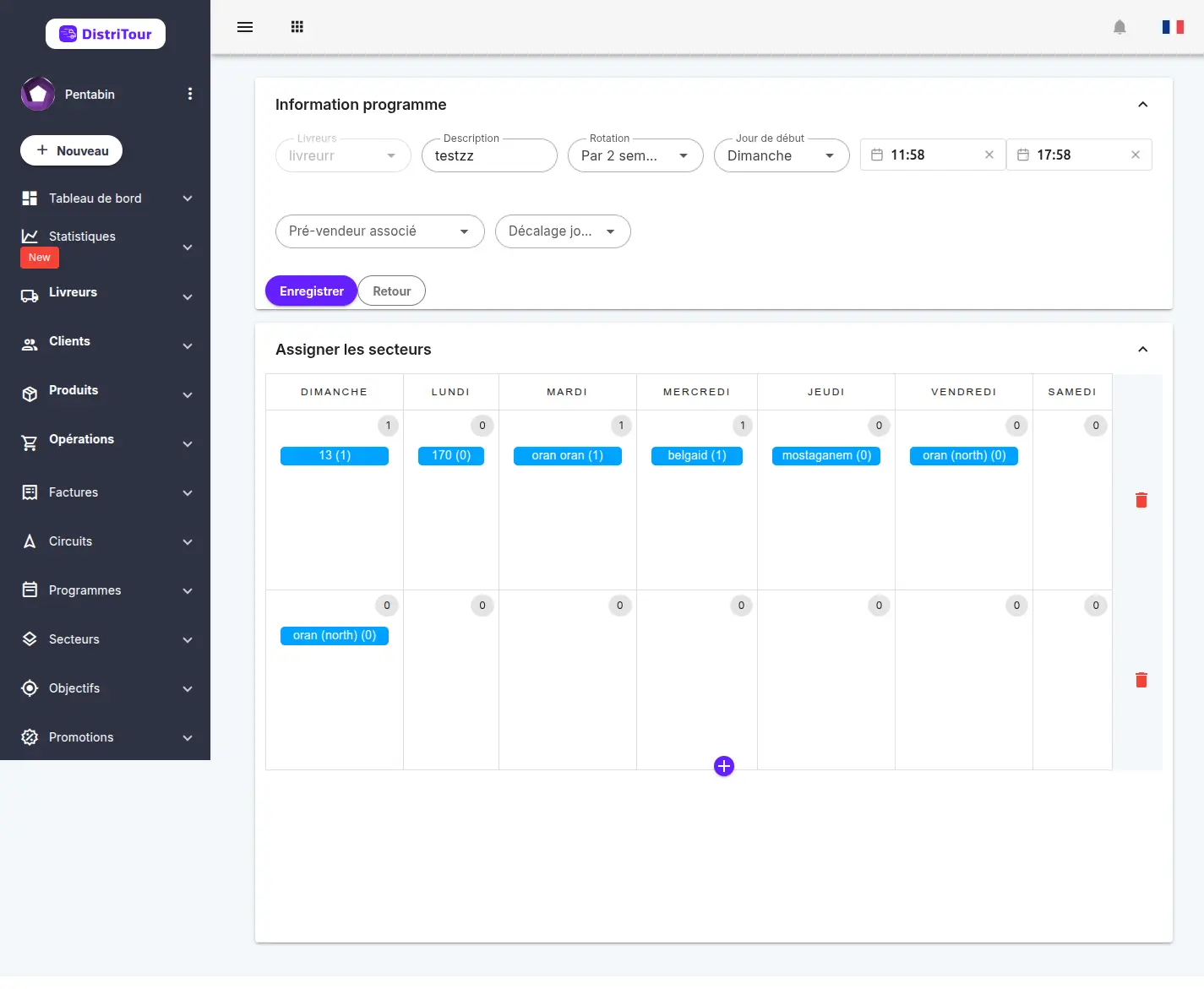
- The page switches to edit mode with the configuration panel.
4. Configuration Fields
| Field | Required | Description |
|---|---|---|
| Carrier | Yes | The carrier this program is assigned to. |
| Description | Yes | Name or description of the program. |
| Start Date | Yes | Date from which the program takes effect. |
| End Date | Yes | Date on which the program ends. |
| Start Time | Yes | Start time of the working day. |
| End Time | Yes | End time of the working day (must be after start time). |
| Sectors per day | Yes | For each active day and rotation, the sectors to cover. |
5. Managing Rotations
A rotation defines how frequently circuits (routes) are reset.
1 rotation — weekly cycle: Sectors are assigned on a weekly basis. Every week the circuits are reset and the carrier receives the clients from the sectors defined for each day.
2 rotations — bi-weekly cycle: Sectors are assigned on a 2-week basis. Circuits are reset every 2 weeks. Rotation 1 applies in week 1, Rotation 2 applies in week 2.
To add a rotation on a given day, click the + tab next to existing rotations, then select the sectors to cover.
6. Saving Changes
Once the configuration is complete, click Save to apply the program.
Once the program is saved, circuits will be automatically created and launched with the selected sectors on the configured dates and times.
7. Notes
If the selected carrier already has an open circuit (started but not closed, and not created from a program), a warning is shown when saving. The program can still be saved, but it will not start a new circuit until this existing open circuit is stopped. The same warning also appears in view mode (outside of editing) as long as an open circuit exists for the selected carrier.
If a program is created with a start time later than the current time, it may not start on the same day. It is therefore preferable to prepare programs in advance, for example at the end of the day for the next day, rather than on the same day just before the intended start time.