Supplier Payments
This guide explains how to record supplier payments in Distritour.
Access
In the left sidebar, go to Operations, then click on Supplier Payments.
Overview
The supplier payments page displays a table with all recorded payments.
Main columns:
| Column | Description |
|---|---|
| ID | Unique payment identifier. |
| User | User who recorded the payment. |
| Supplier | Supplier who received the payment. |
| Amount | Payment amount. |
| Date | Date and time of payment. |
Creating a Payment
Steps
- Click + Add or Create.
- Fill in required fields:
| Field | Type | Description |
|---|---|---|
| User | Selection | User recording the payment. |
| Supplier | Selection | Supplier receiving the payment. |
| Amount | Number | Payment amount. |
| Date | Date/Time | Date and time of payment. |
- Click Save.
Use Cases
- Partial or full payment for credit purchases.
- Recording payments for accounting.
Change History
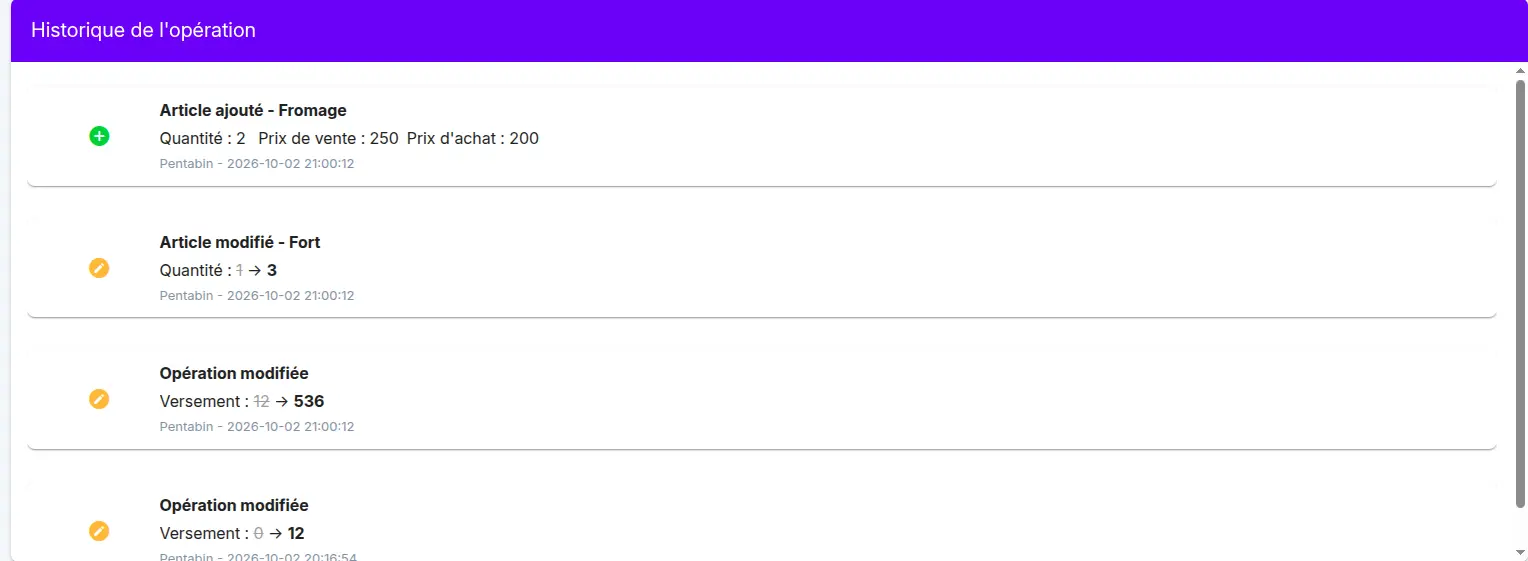
Every change made to this record is captured automatically, for example a change to the quantities, prices or items of an operation, or the amount paid.
The changes can be seen in the change history table, on the operation page. For each change, it shows:
- what happened (added, modified)
- the field concerned, with its old value crossed out and its new value
- the user who made the change and the date and time
This lets you know who changed what, and when.