Stock Initializations
This guide explains how to initialize product stock in Distritour. Stock initialization allows you to set product quantities at system startup or for a specific carrier.
Access
In the left sidebar, go to Operations, then click on Stock Initializations.
About Stock Initialization
Stock initialization is used to:
- Configure initial stock at system startup
- Initialize stock for a specific carrier
- Record actual available product quantities
Initializing Stock
Steps
- Click + Add or Create.
- Fill in the general information:
| Field | Type | Description |
|---|---|---|
| User | Selection | (Optional) Carrier for stock initialization. If not selected, current warehouse stock will be initialized. |
| Operation Date | Date | Date of stock initialization. |
| Time | Time | Time of stock initialization. |
In the Products section, Specify the items to initialize with the desired quantity.
Click Save to complete initialization.
Import Products via Excel
To quickly initialize warehouse stock with a product list and quantities:
Access Import
- In the stock initialization form, click the Import Product Quantities (For Warehouse) button.
- You will be redirected to the import page.
Excel File Format
Your Excel file must contain at least two columns:
| Column | Description | Example |
|---|---|---|
| Name | Exact product name | "Milk 1L", "Whole Wheat Bread" |
| Quantity | Initial stock quantity | 100, 250 |
Import Steps
Upload the file:
- Click in the dropzone or select an Excel file
- System processes the file and displays detected columns
Map columns:
- Select column containing product names
- Select column containing quantities
- Click Save
Verify data:
- Preview table shows all products to be imported
- Verify names and quantities are correct
Confirm import:
- Click Submit to finalize import
- Products will be added to warehouse stock with specified quantities
Note: Import processes files in batches (100 products at a time). A progress bar shows advancement.
Reset Stock to Zero
If you need to reset all stock to zero:
- Click the Reset Stock to Zero button
- Confirm the operation in the dialog
⚠️ Warning: This action resets all stock and cannot be easily undone.
Use Cases
- Initializing system with existing stock.
- Complete warehouse inventory at startup.
- Setting initial stock for a new carrier.
- Recording actual product quantities.
- Bulk importing products with quantities from Excel for warehouse setup.
Change History
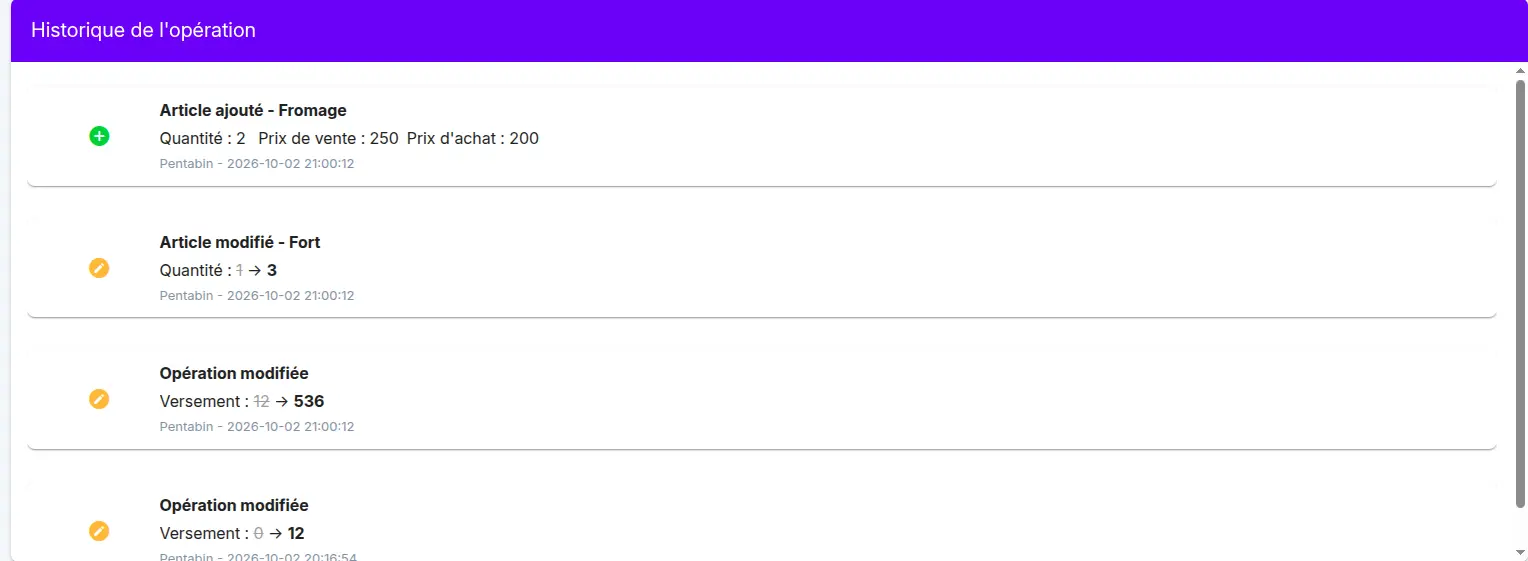
Every change made to this record is captured automatically, for example a change to the quantities, prices or items of an operation, or the amount paid.
The changes can be seen in the change history table, on the operation page. For each change, it shows:
- what happened (added, modified)
- the field concerned, with its old value crossed out and its new value
- the user who made the change and the date and time
This lets you know who changed what, and when.