Get Started with Distritour Admin
This guide describes, in a basic way, the steps to follow to start using Distritour. Once these steps are done, your carriers can connect to the mobile app and start working.
Step 1 — Add Your Products
Fill your product catalog in one of two ways:
- One by one: use the Add button of the products list and fill the product form.
- By importing an Excel file: use the Import button of the products list to add many products at once.
➡️ See Product Management.
Step 2 — Add Your Carriers
Create an account for each carrier (the people who work in the field and use the mobile app).
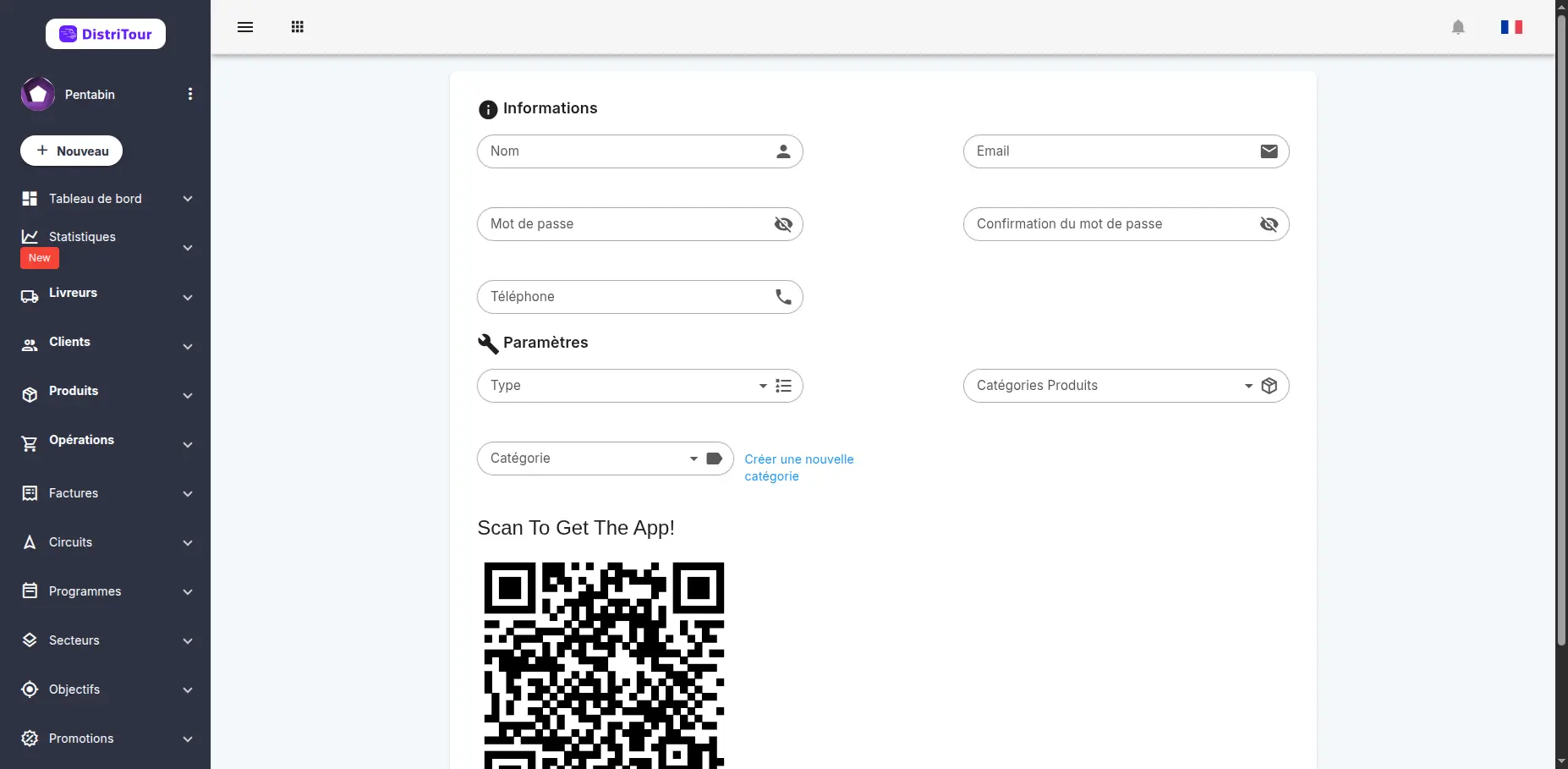
- Open the Carriers page and click Add.
- Fill in the carrier's information, including the email and the password of their account.
- When the carrier name is filled, a QR code is displayed on the form. The carrier can scan it to get the mobile app.
- Give the carrier their account: the email (shown on the carrier details page) and the password you chose.
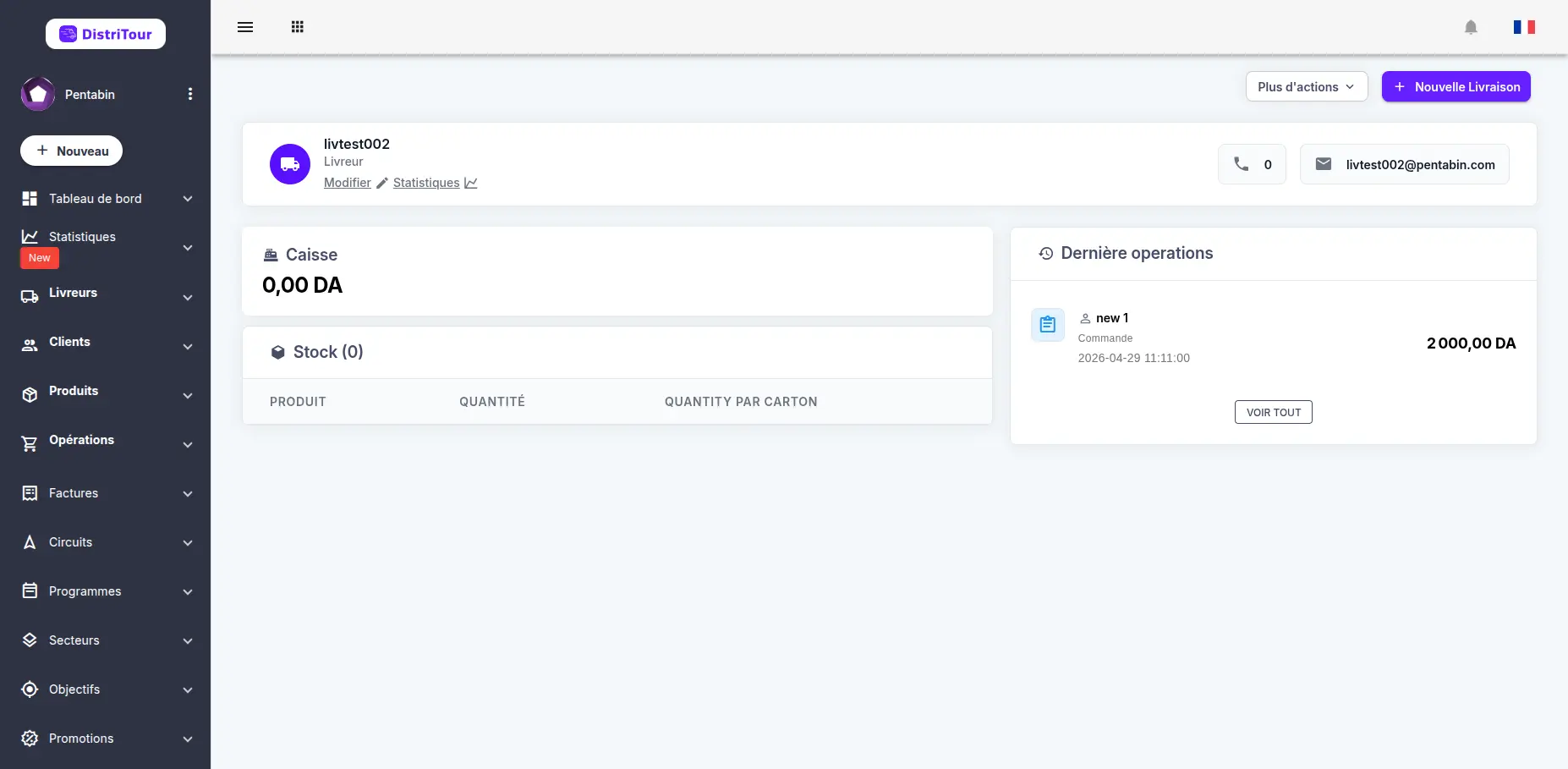
➡️ See Carrier Management.
TIP
When you create a new carrier, an open circuit is automatically started for them.
Step 3 — Add Your Clients
You have two options:
- You already have a clients database: add your clients yourself, one by one or by importing a file.
- You don't have their data (for example their GPS address): let your carriers create the clients directly from the mobile app. They can set the client's GPS position while they are at the client's location.
➡️ See Client Management and Mobile Customer Management.
Step 4 — Segment Your Clients (Optional)
If you want to organize your clients, go to Sectors and create your sectors, then assign your clients to them.
➡️ See Sector Management.
Step 5 — Start a Circuit
A circuit defines the work of a carrier. Start a new circuit for the carrier, choosing its type:
- Open: the carrier visits clients freely
- Sector based: the clients of the chosen sectors are automatically included
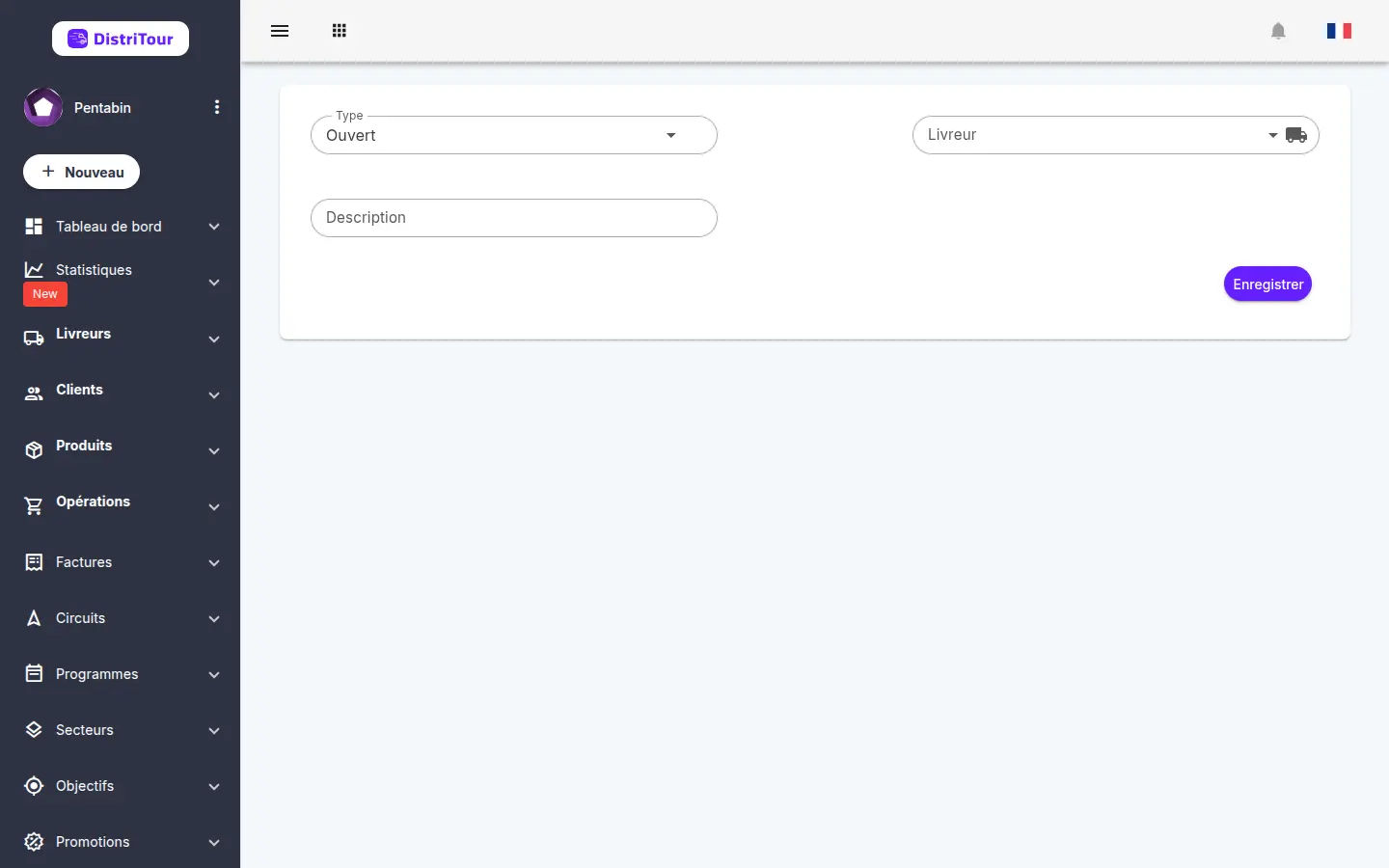
➡️ See Circuit Management.
What Happens on the Carrier's Phone
When the carrier connects to the mobile app, they automatically receive:
- the products
- the clients of the current circuit
They can start working right away. Their operations are synced to the back office immediately (as soon as an internet connection is available).
➡️ See the Mobile App Overview.